Purpose: To aggregate multiple transactions into a single e-invoice for periodic statements or bills.
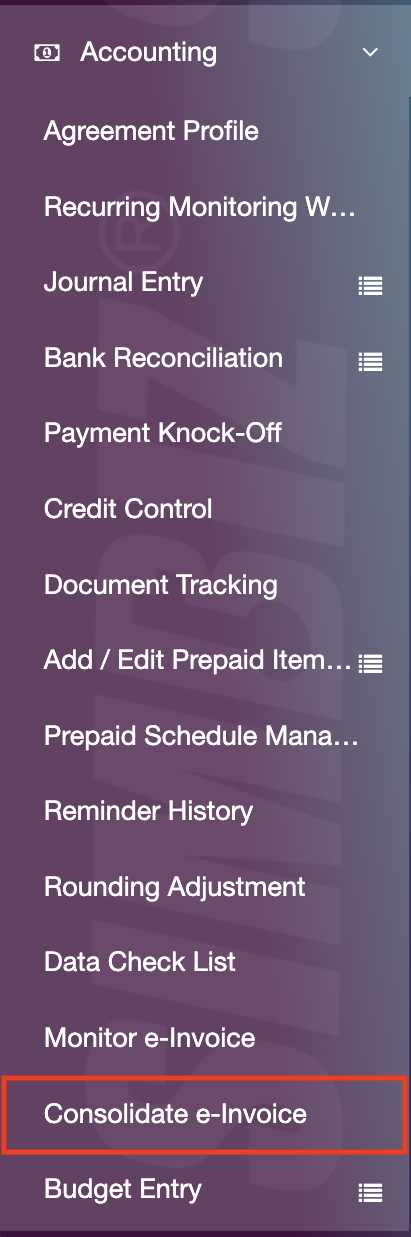
Step 1 : Navigate to the Activities section and go to the Accounting folder. Click the Consolidate E-invoice.
Step 2 : The Consolidate E-Invoice screen allows users to search and consolidate all non-submitted e-invoices by clicking the Search button.
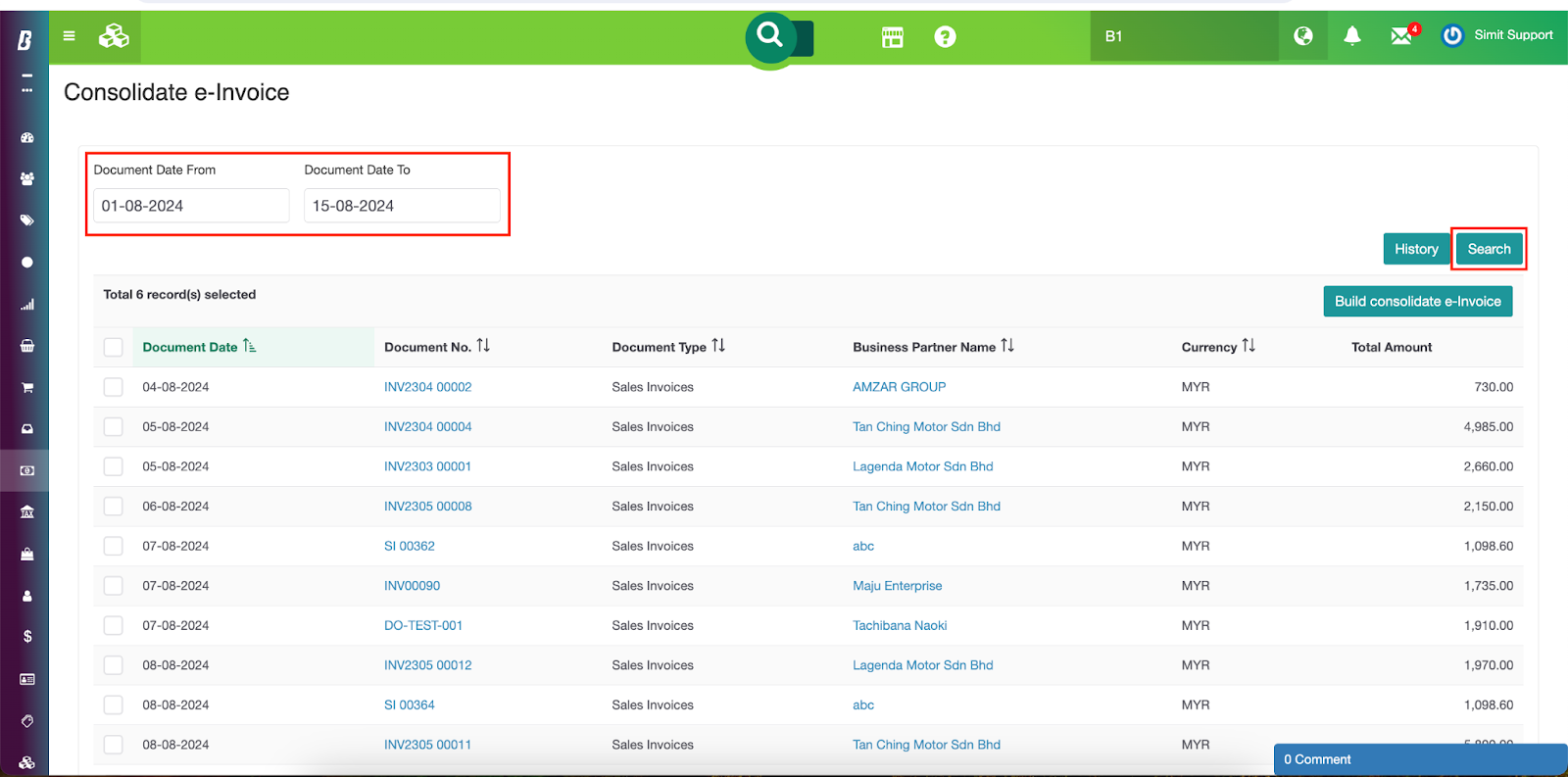
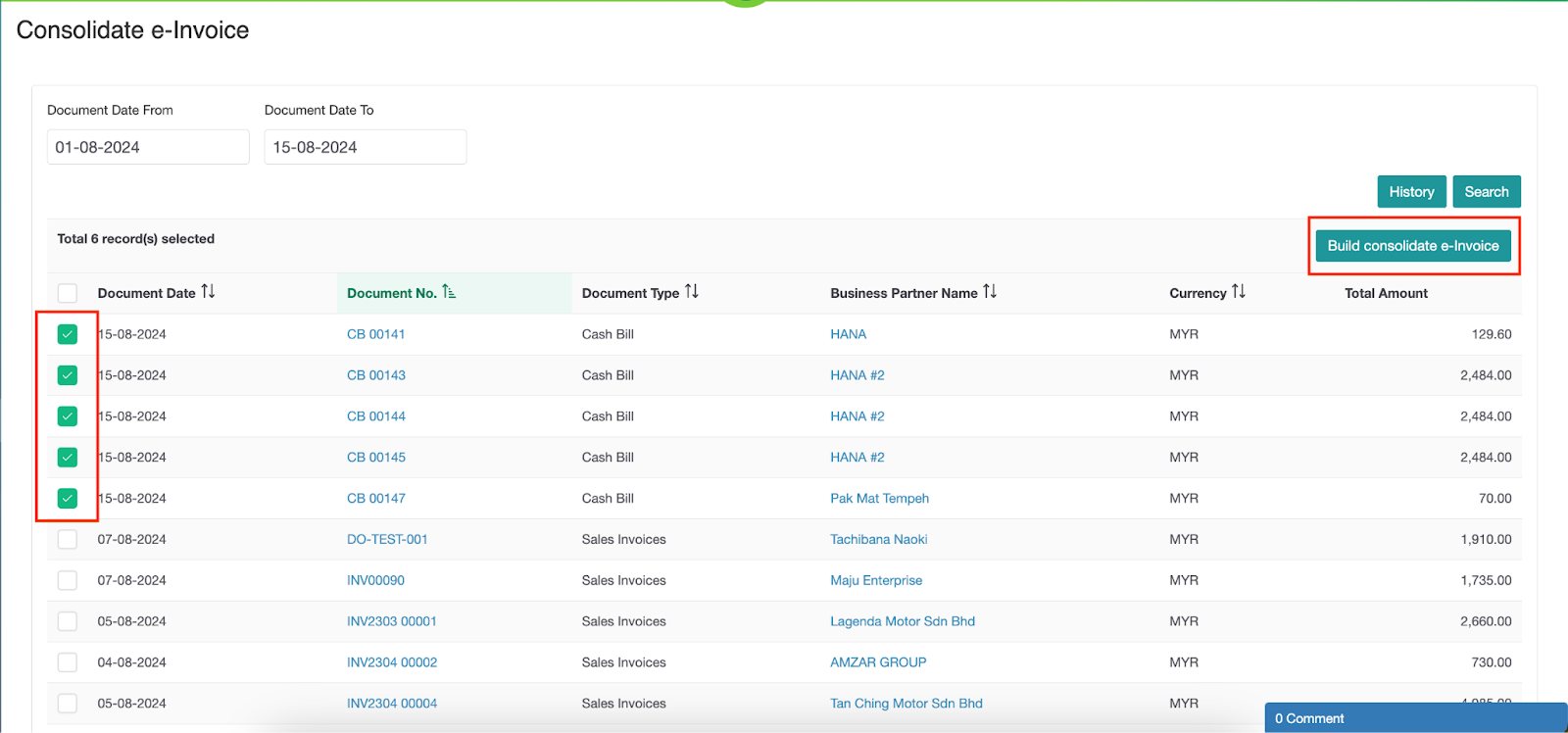
Step 3 : The screen displays transactions that have yet to be submitted to the MyInvois portal. Tick the transactions that need to be consolidated in a single e-invoice and click the Build Consolidate e-invoice button.
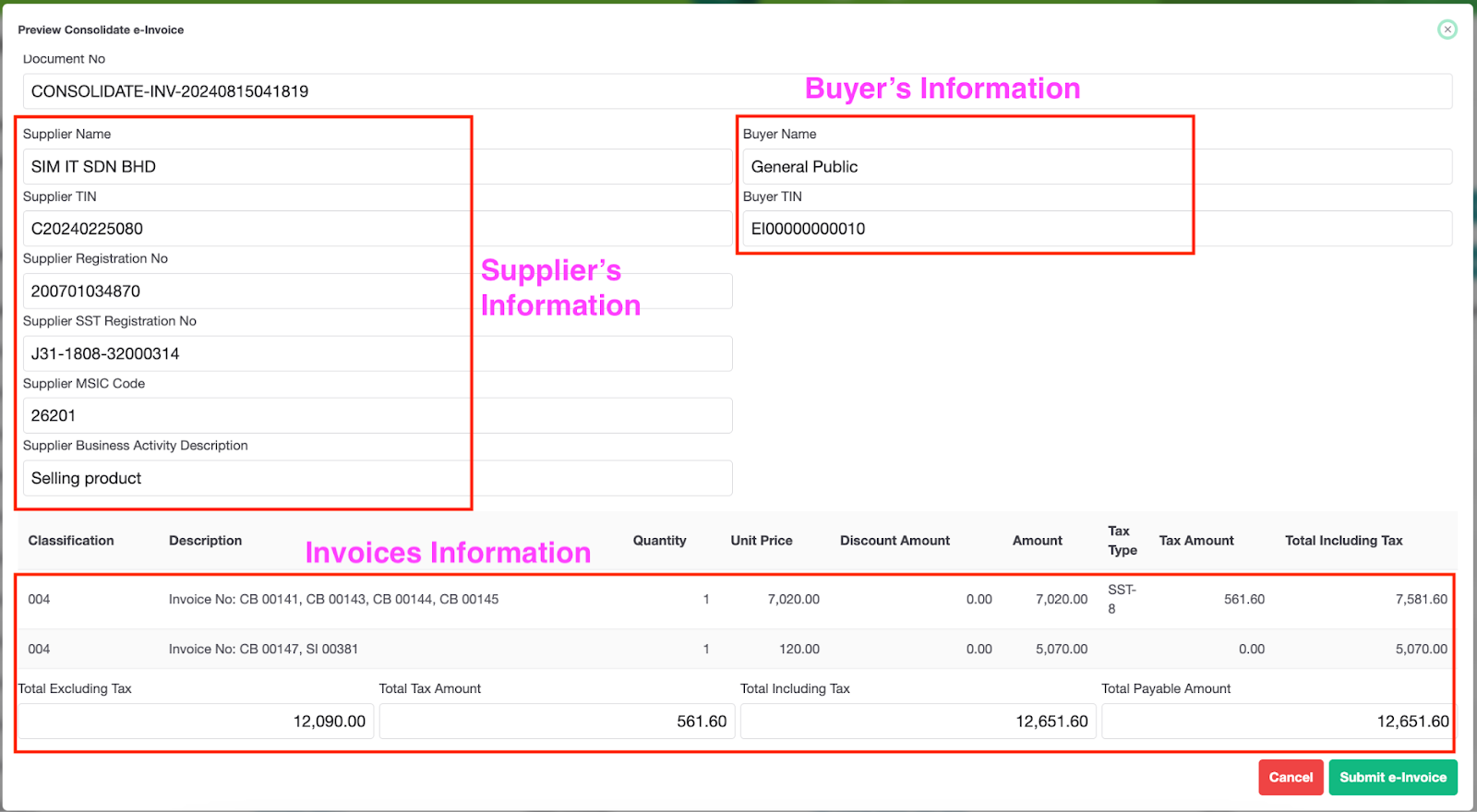
The screen displays the summary of the consolidated e-invoice. The left side shows your company details and the general information of the buyer is displayed on the right side. The bottom part of the summary shows the selected invoices grouped based on tax availability.
Step 4 : Upon verification of the consolidated e-invoices, press the Submit e-invoice button.
Step 5 : Next, click the ‘Yes’ button to proceed.

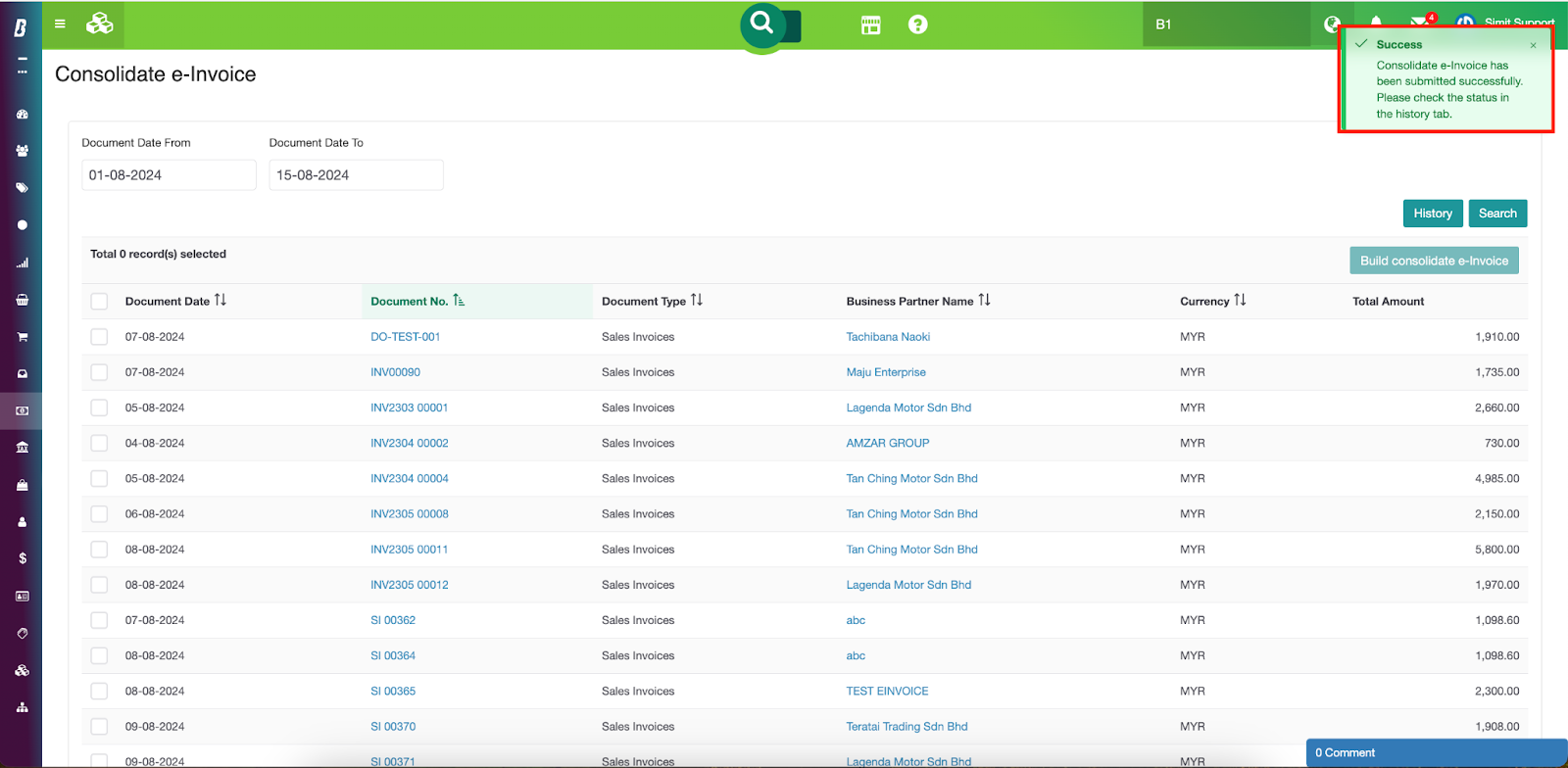
A success message appears in the top right corner indicating that the submission of the consolidated e-invoices is successful.
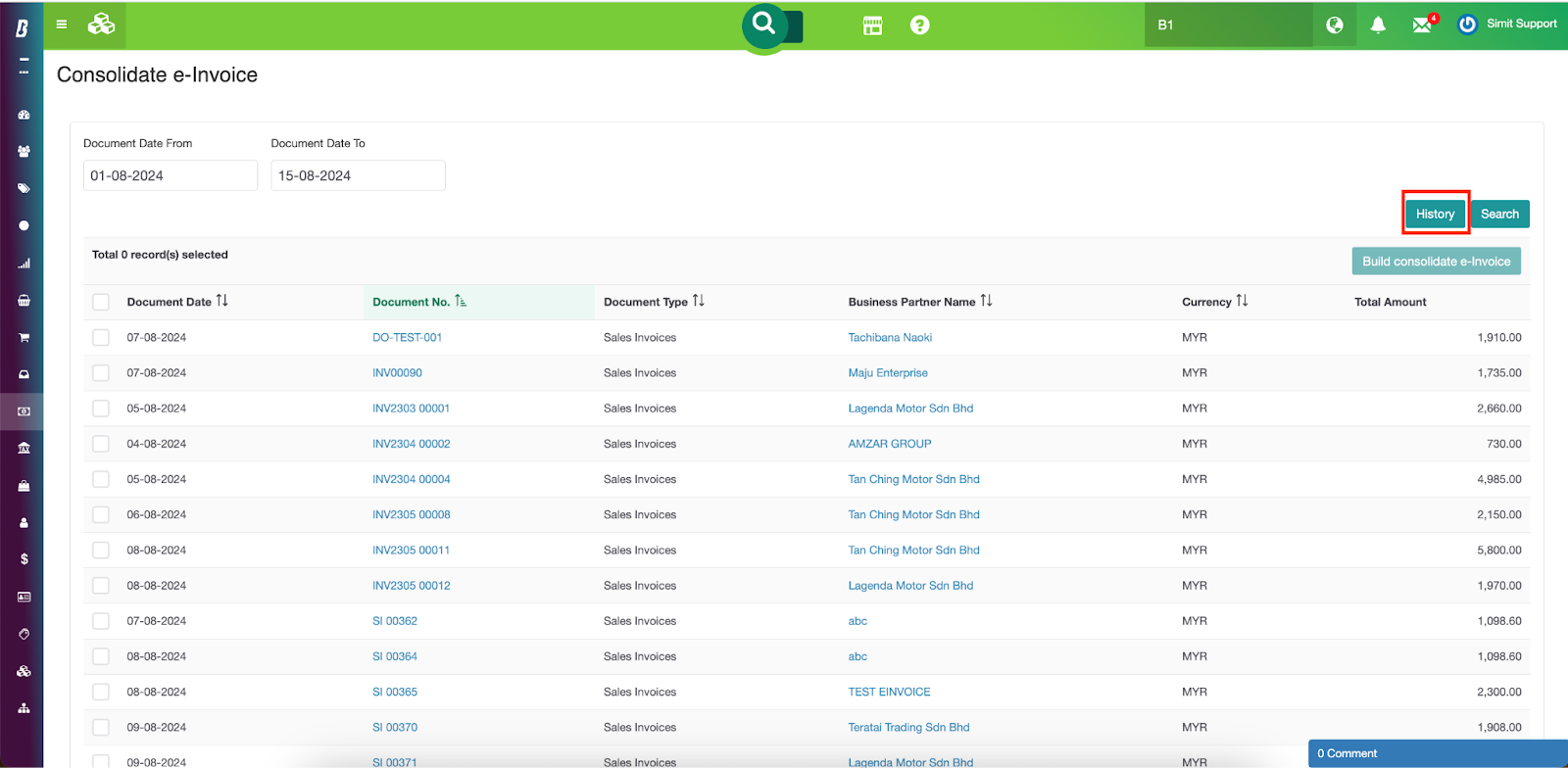
Step 6 : If users want to view the submitted consolidated e-invoices, click the History button.
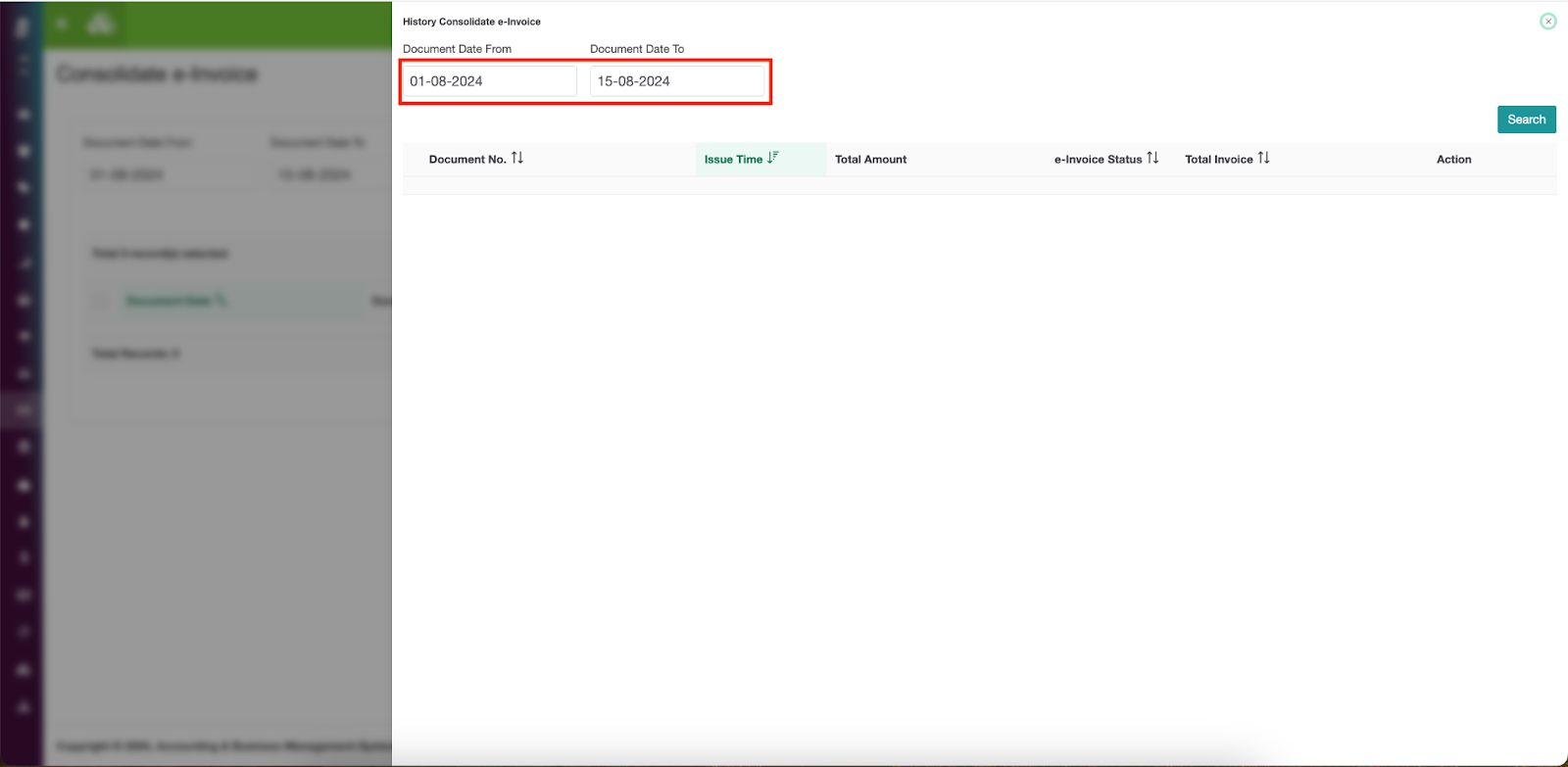
Step 7 : A slide-in panel will appear from the right, select the right date range and click the Search button.
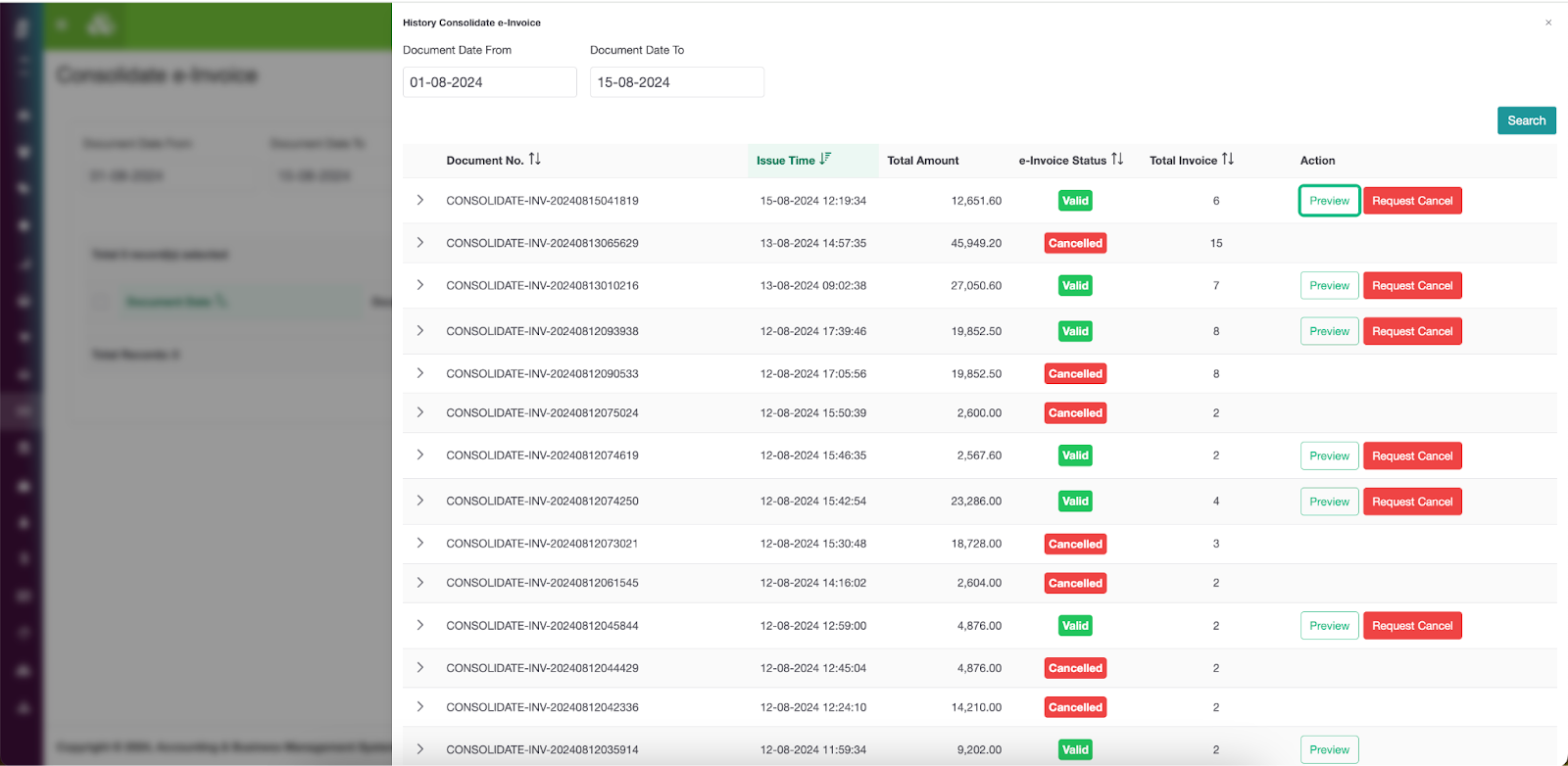
The screen displays all statuses of consolidated e-invoices based on the selected date range. Users can also make a cancellation request here by clicking the Request Cancel button.
Was this article helpful?
That’s Great!
Thank you for your feedback
Sorry! We couldn't be helpful
Thank you for your feedback
Feedback sent
We appreciate your effort and will try to fix the article