Step 1. Create the transaction in SimBiz® as you normally would before the e-invoice integration.
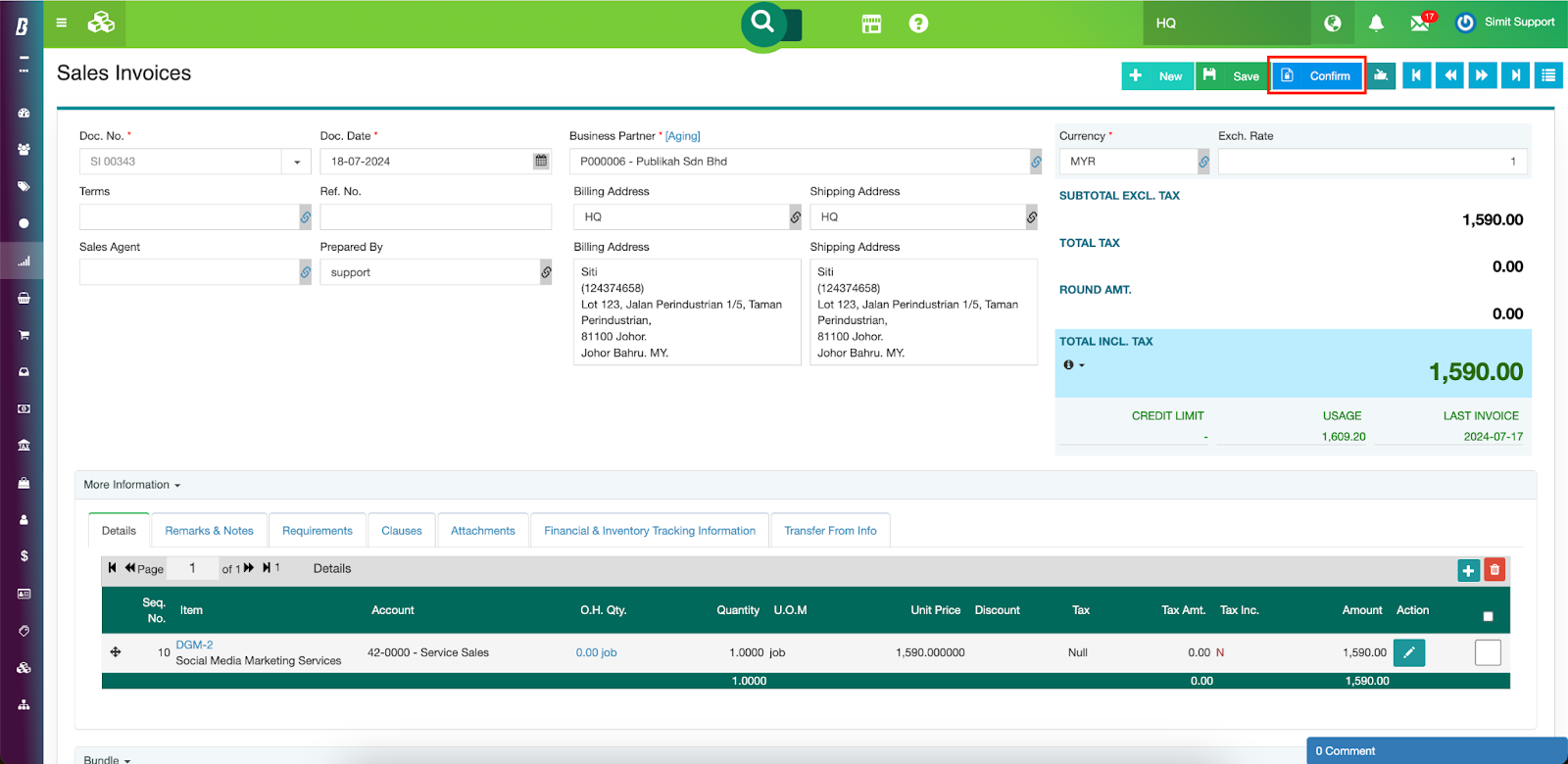
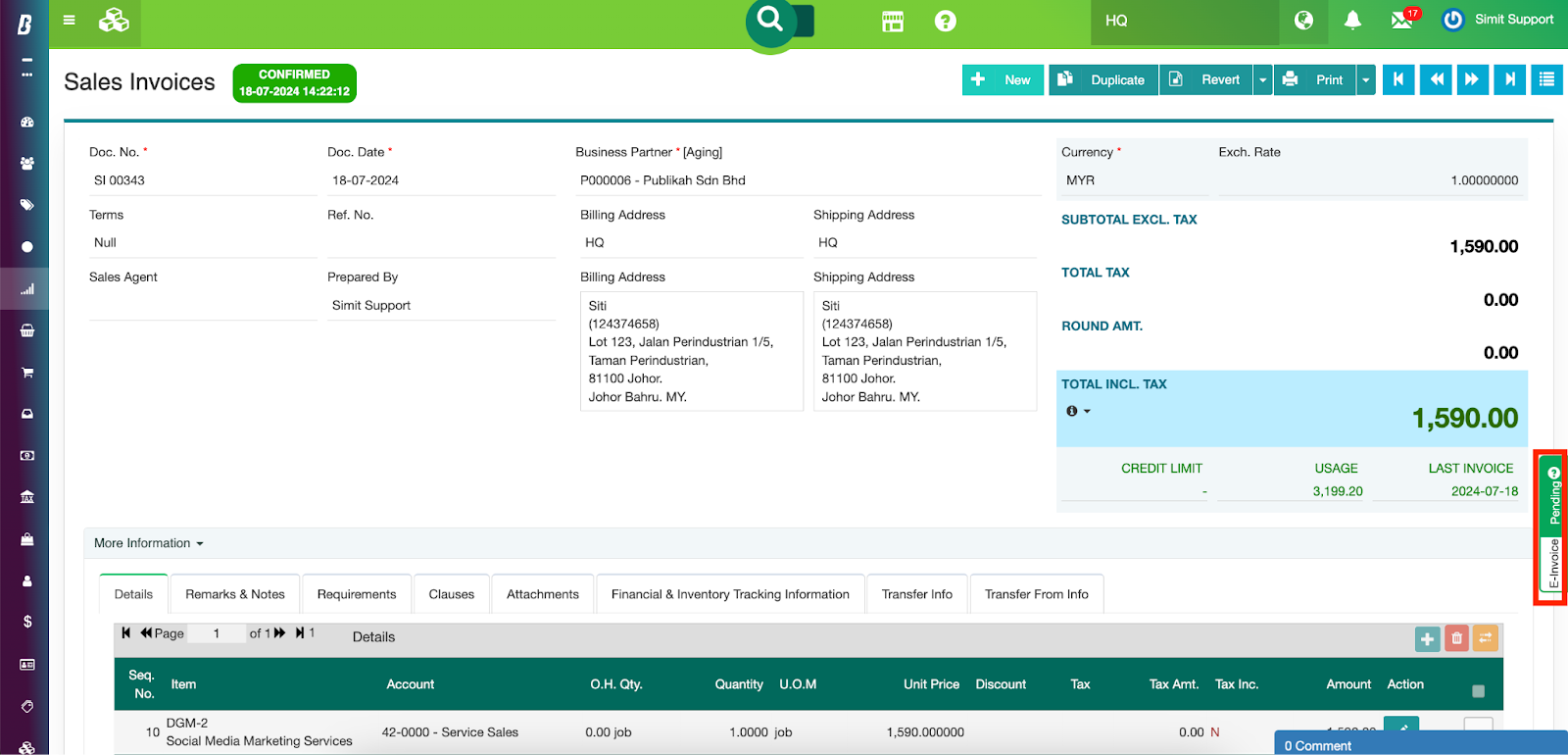
Step 2. After confirming the transaction document, locate the e-invoice floating sidebar.
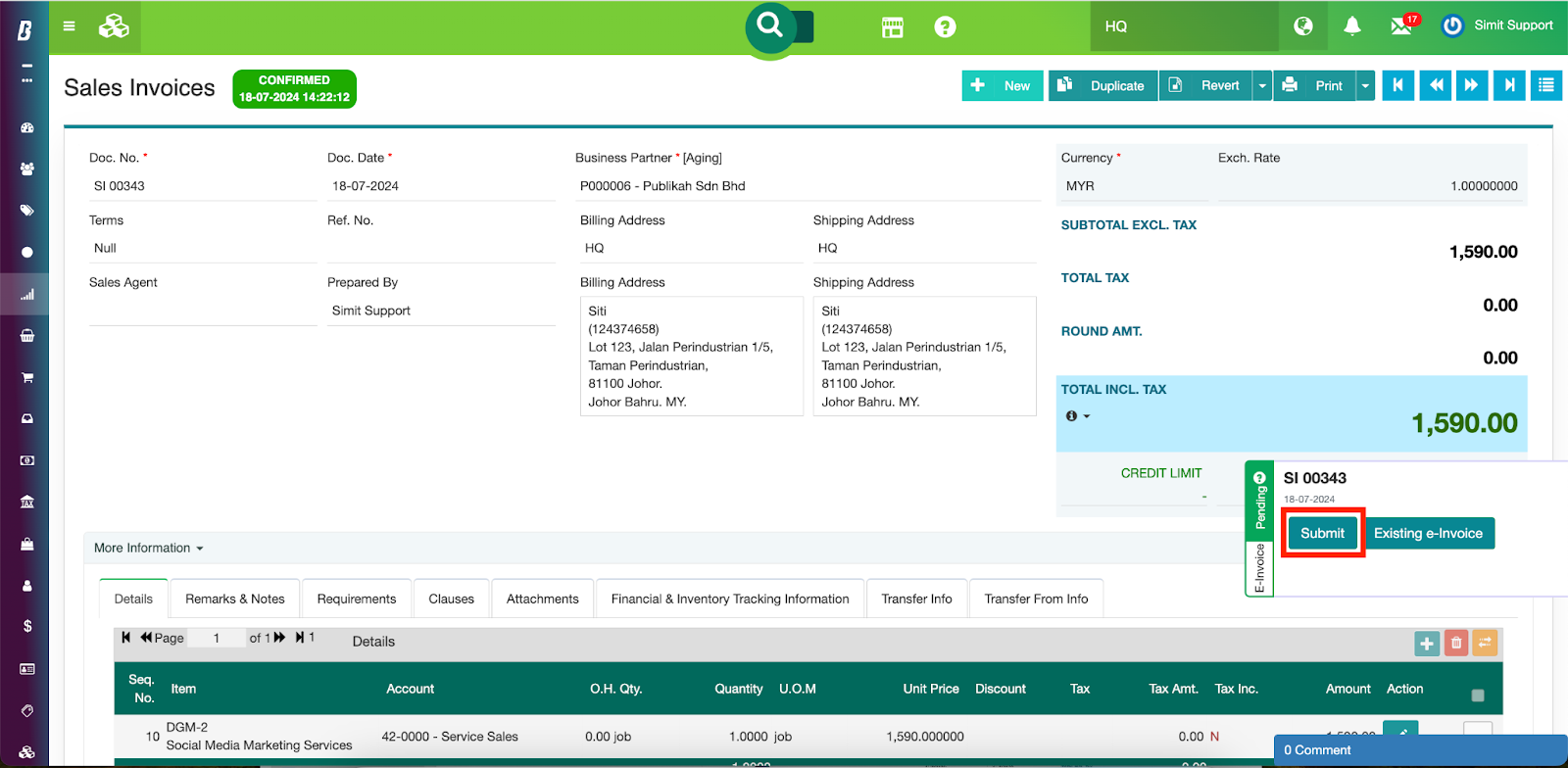
Step 3. Click the Submit button on the e-invoice sidebar to initiate the submission process.
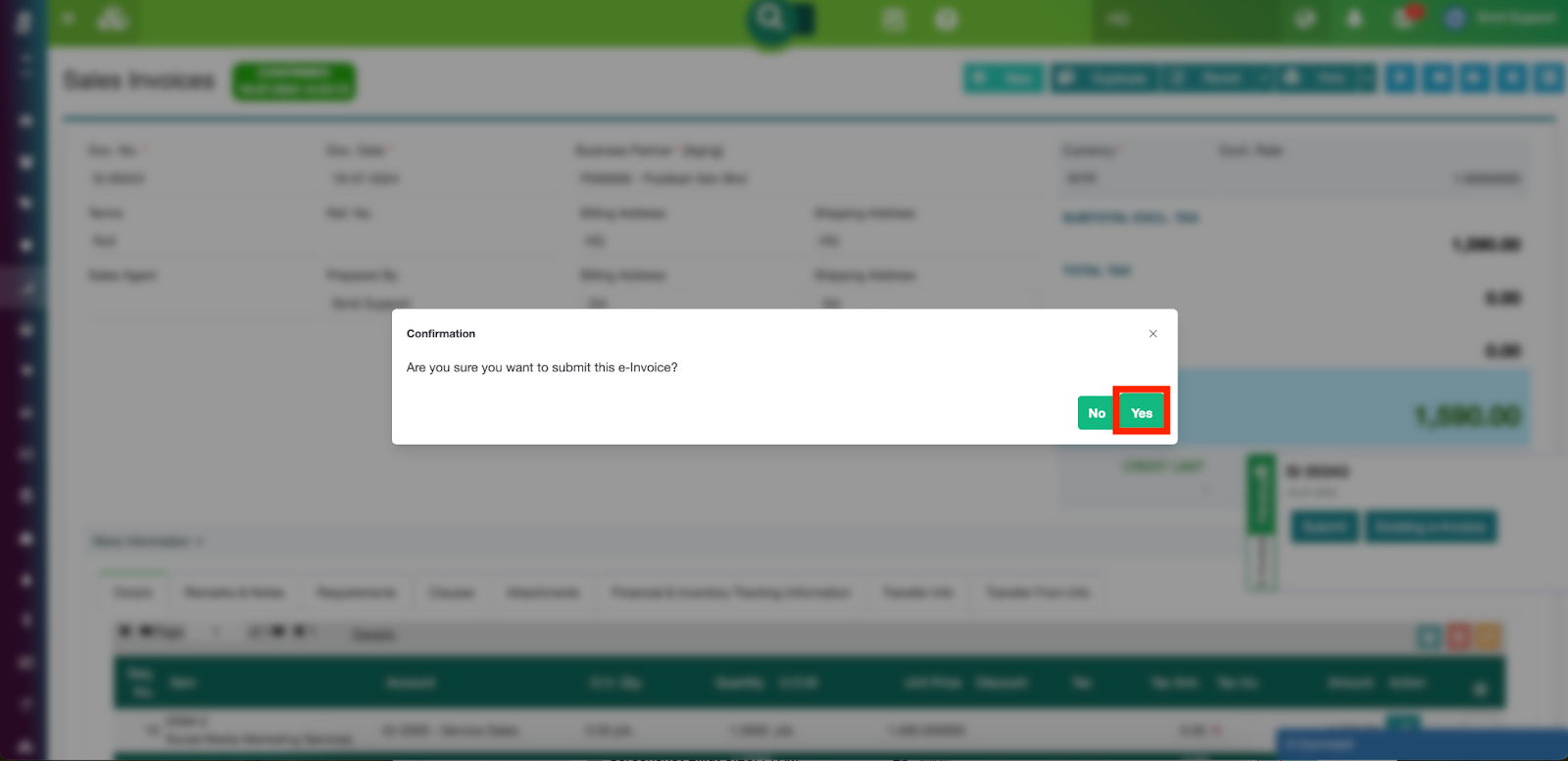
Step 4. Click ‘Yes’ to proceed with the submission.
After successful submission, users will notice the submission status has changed to ‘Submitted’, highlighted in the red rectangle in the image below. Also, if users click the ‘?’ icon, they can access the list of e-invoice statuses, helping them understand the different stages of e-invoice submission.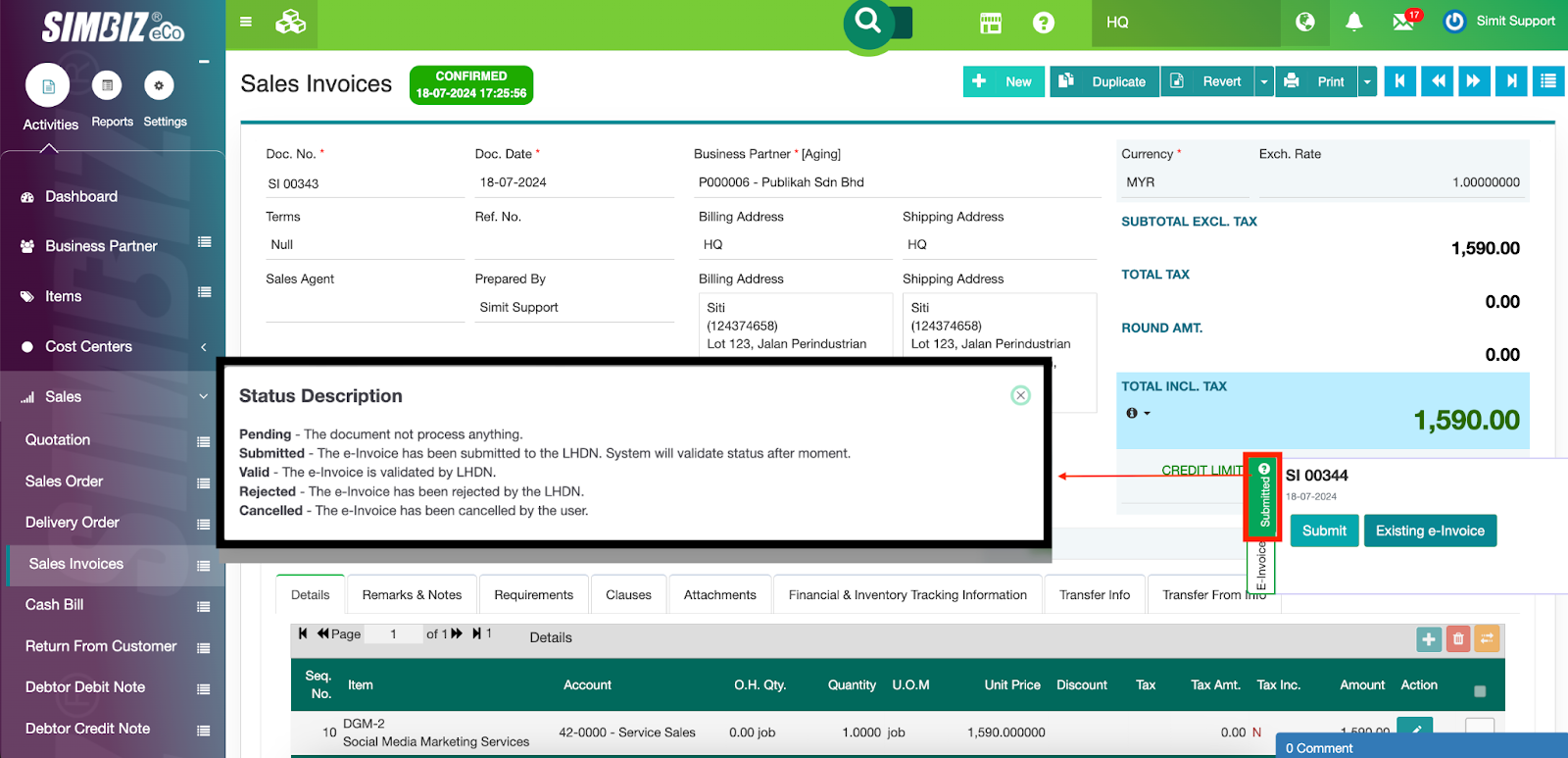
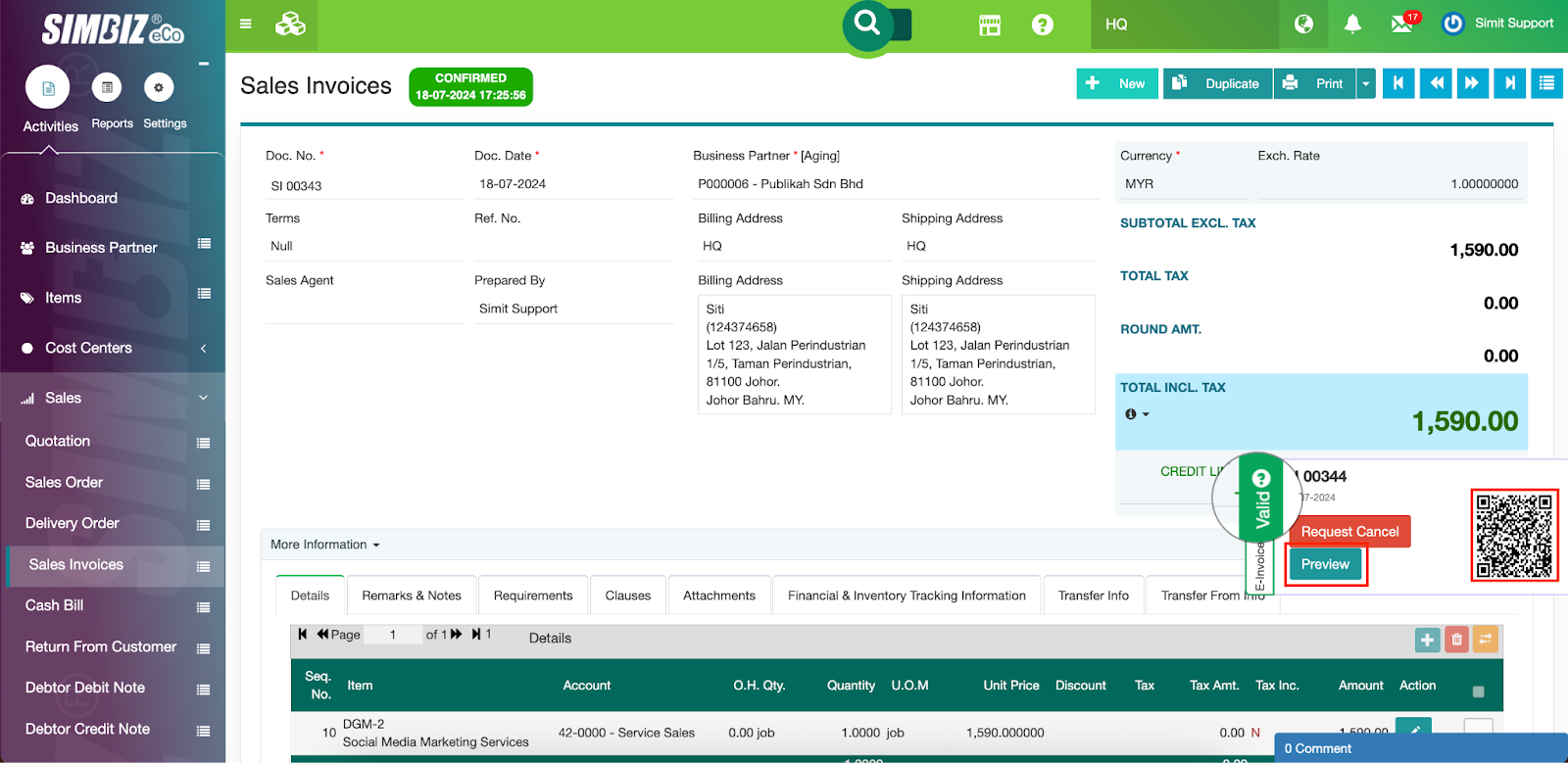
In 30 seconds (max.), after the e-invoice is submitted successfully, the status of the e-invoice will change to ‘Valid’ to indicate that the e-invoice has been validated by LHDN successfully as shown in the image below.
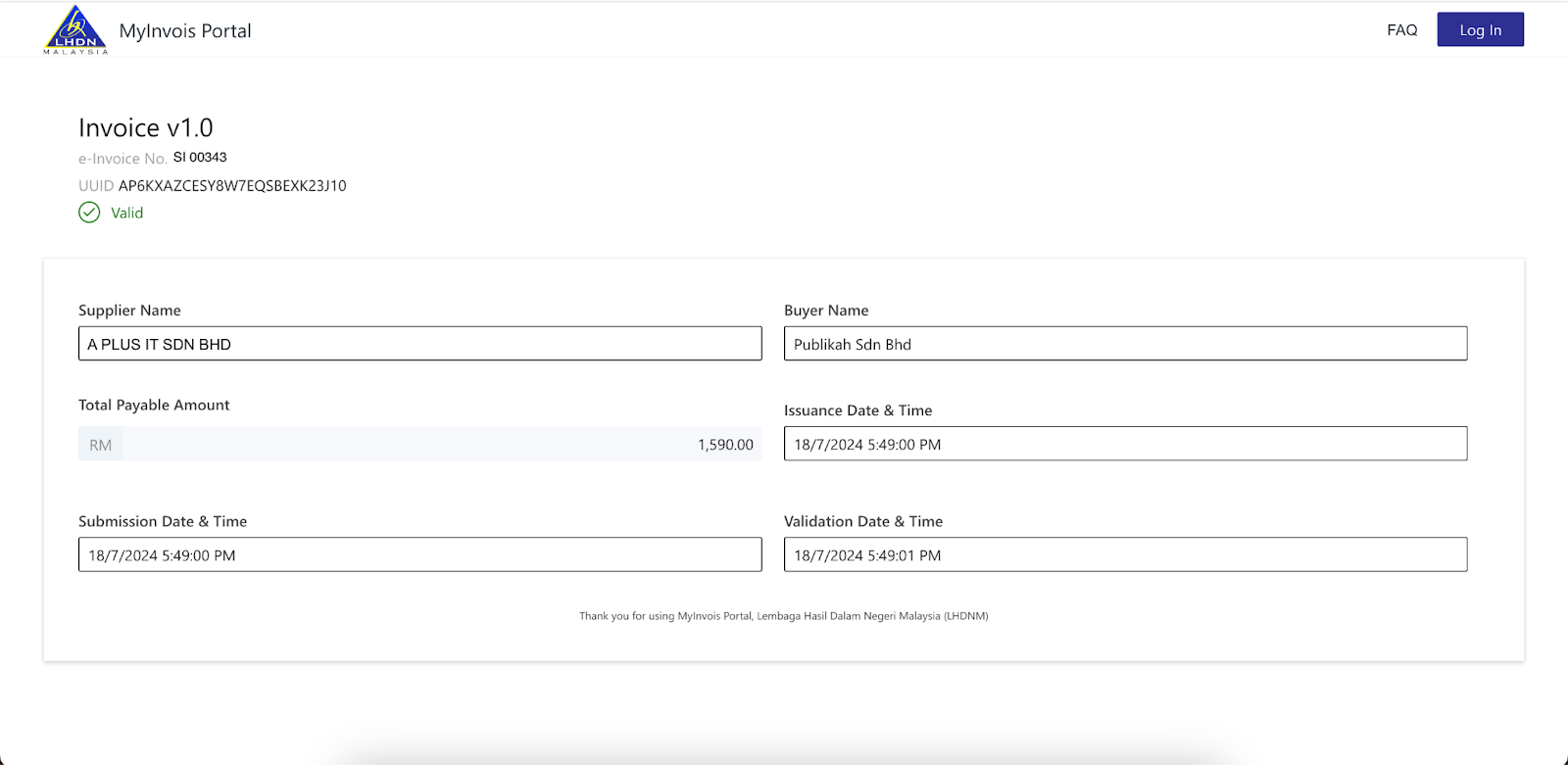
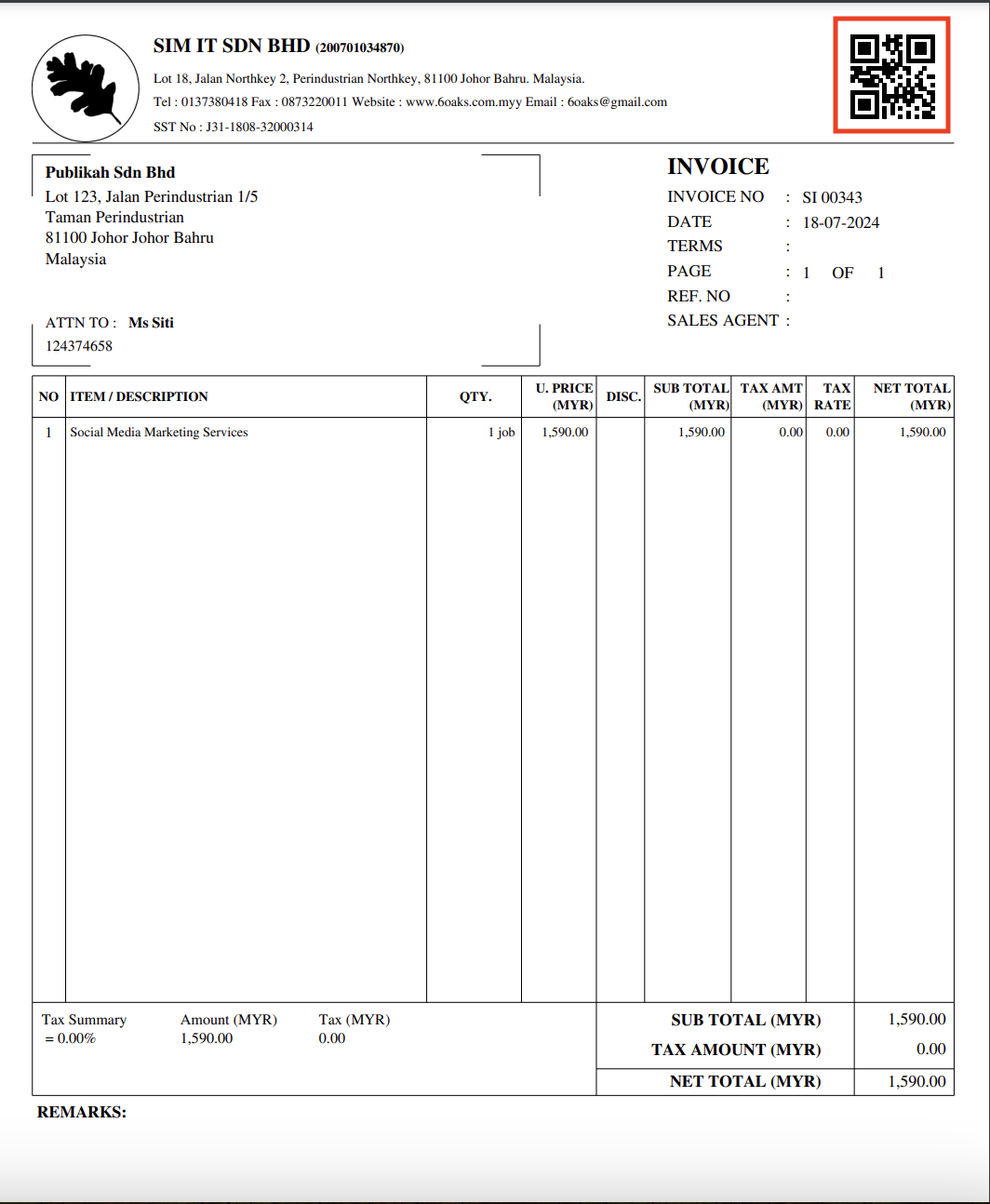
A QR code is now available on the document. If users scan it, they will be directed to the MyInvois portal, which shows the details of the e-invoice. The same happens when the Preview button is clicked.
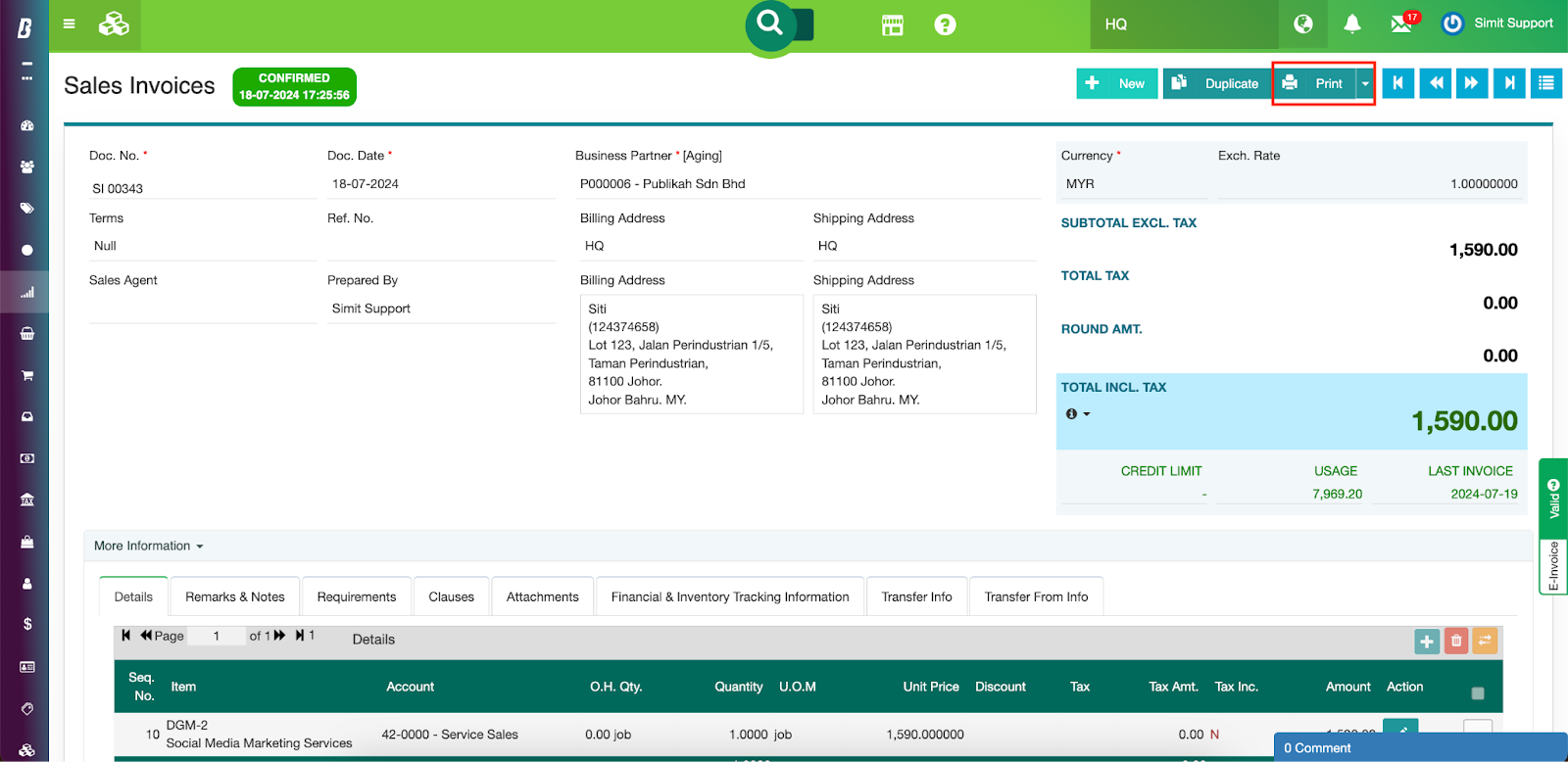
Users can also print out the e-invoice via the default print format which displays the QR code for customers to scan and view the details on the MyInvois portal. 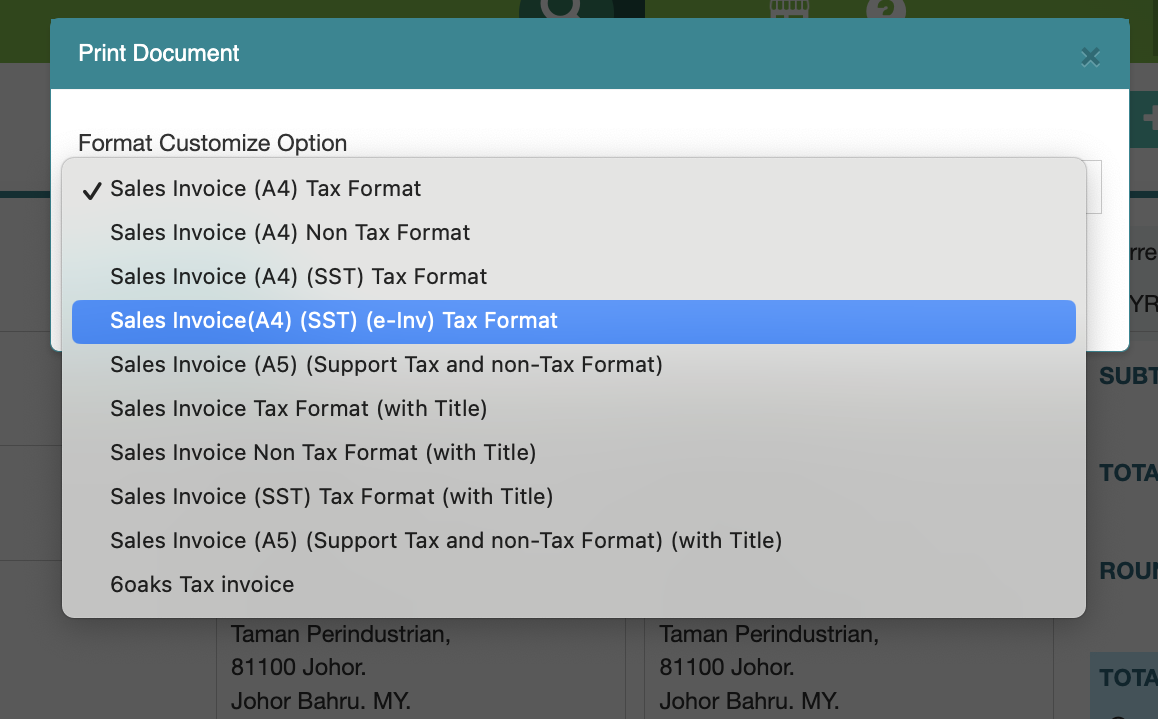
Cancel of E-invoice
In any cases where users need to cancel the validated e-invoice*, they can do so by pressing the Request Cancel button as shown in the image below:
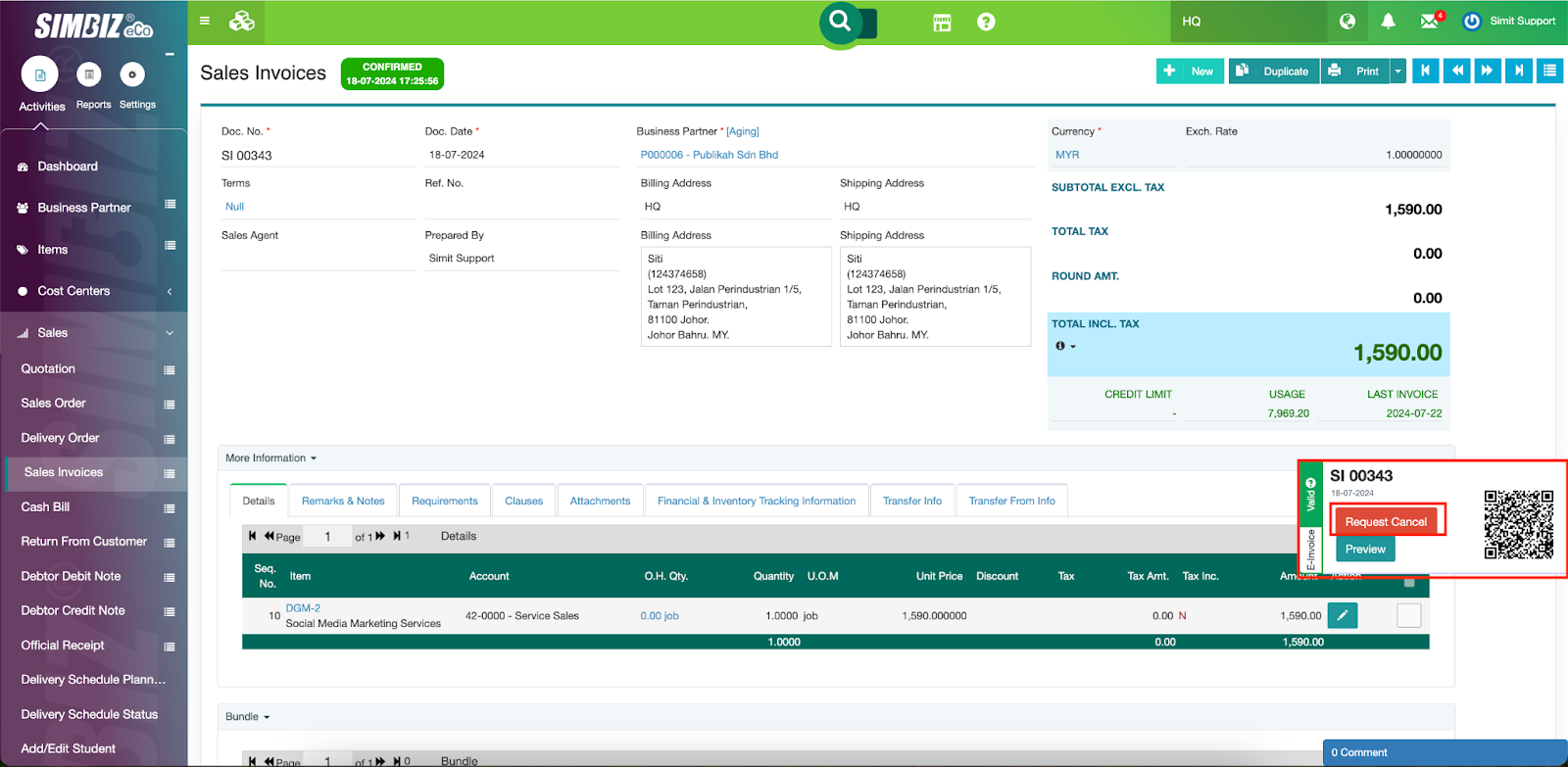
*Important Remarks: According to IRBM’s guidelines, the cancellation request is only available within 72 hours after the e-invoice has been validated by IRBM, provided a valid reason is given.
Insert the reason for the cancellation and press the ‘Proceed to Cancel’ button.
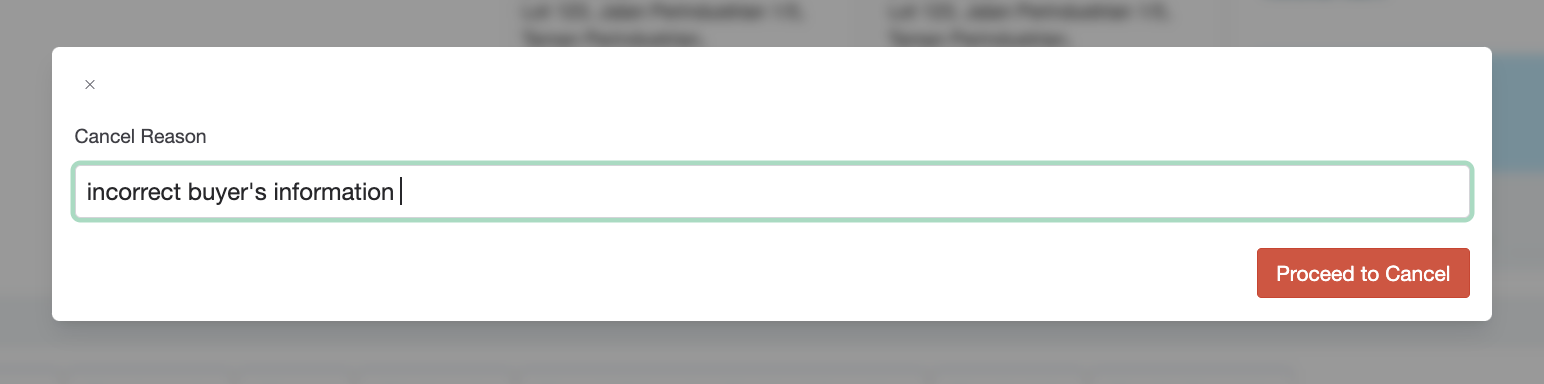
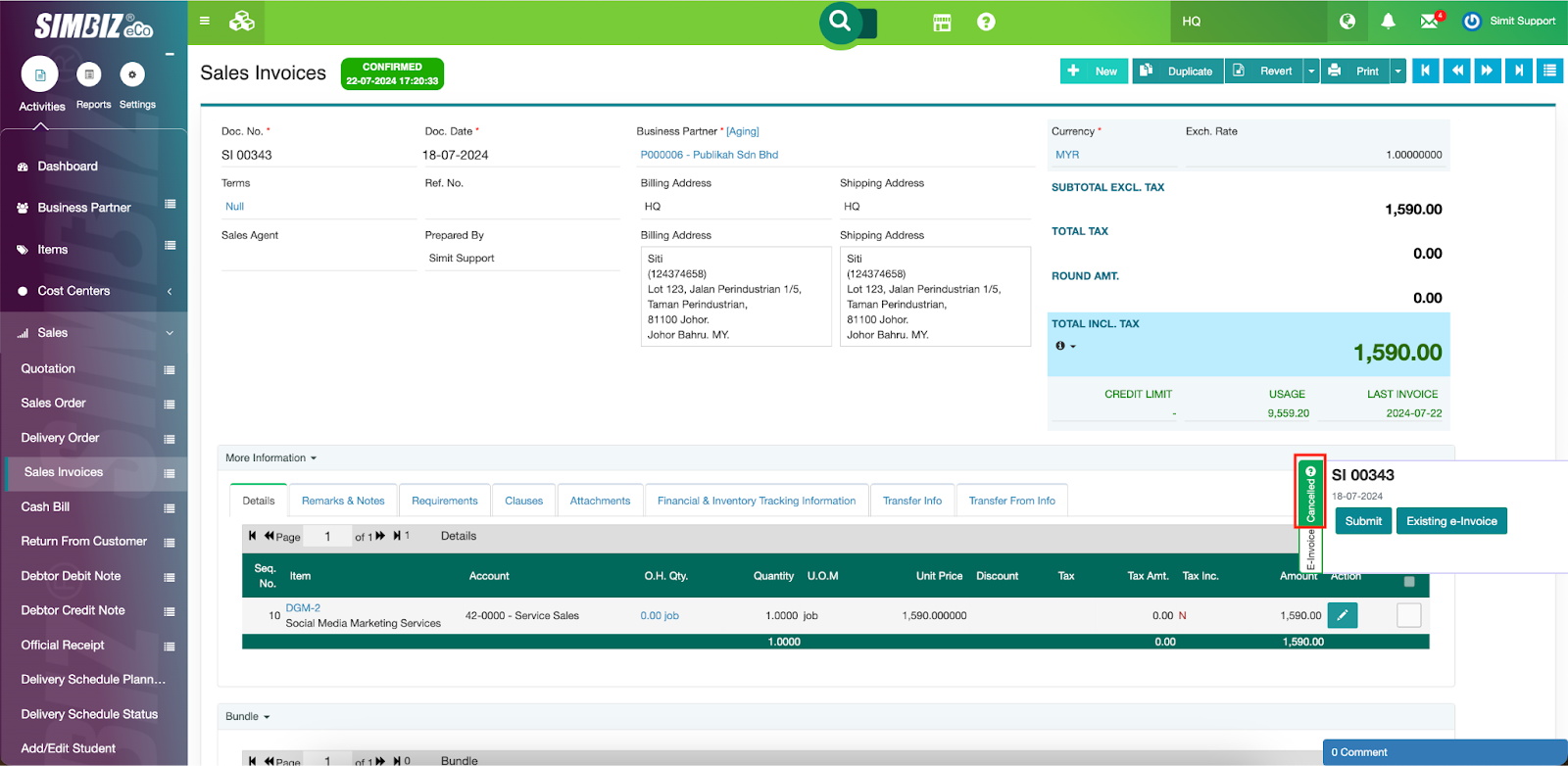
If the cancellation request is accepted, the status of the e-invoice will be changed to ‘Cancelled’.
Was this article helpful?
That’s Great!
Thank you for your feedback
Sorry! We couldn't be helpful
Thank you for your feedback
Feedback sent
We appreciate your effort and will try to fix the article