Purpose: To update customer and supplier information.
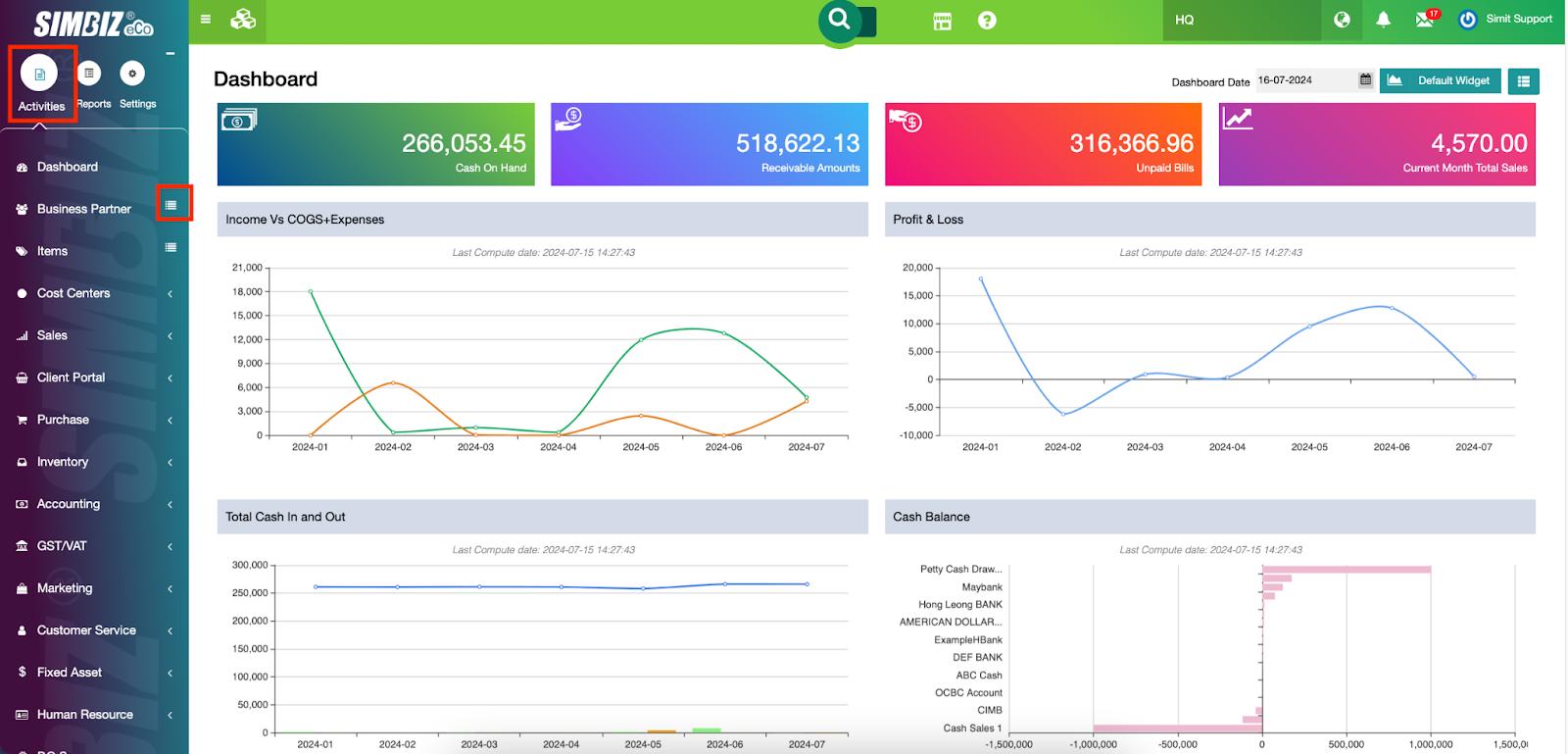
Step 1 : Navigate to Activities > Business Partner > Data List to search for all business partners.
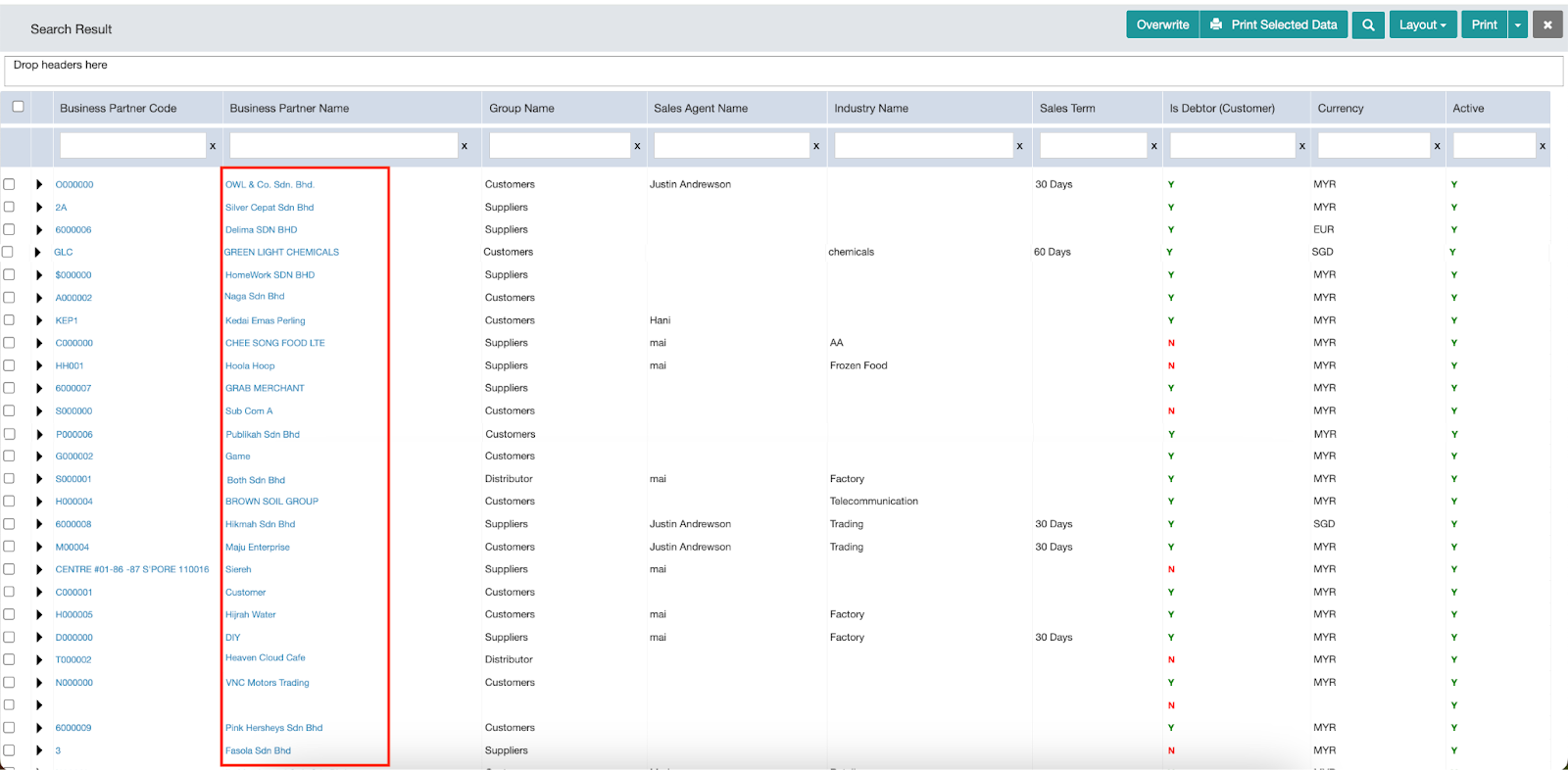
Step 2 : Select each business partner’s name to view their profile.
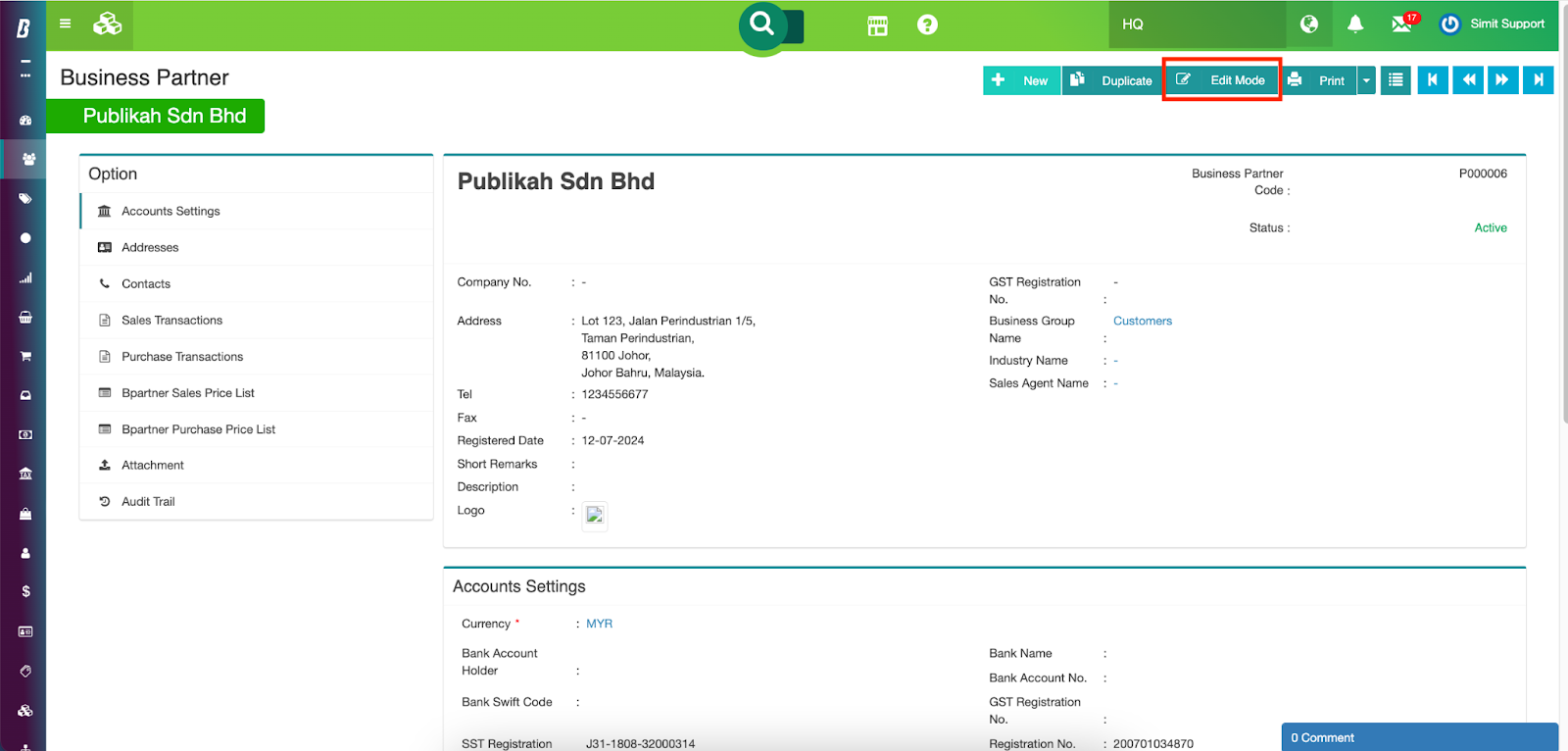
Step 3. Click the Edit Mode button to enable editing of the business partner's profile.
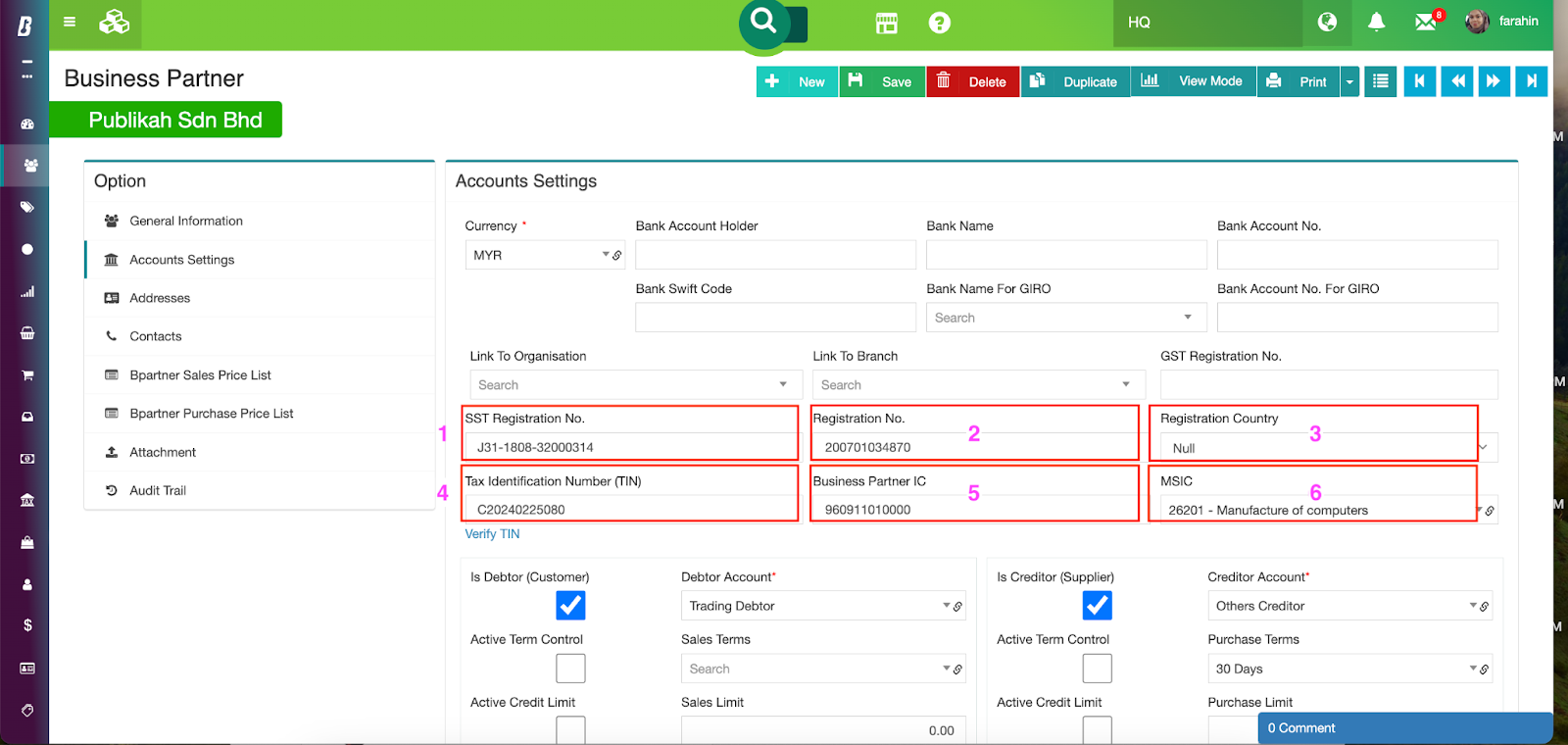
Step 4: Update the following essential information:
1. SST Registration Number (if applicable)
2. Registration Number
3. Registration Country (if the business partner is an overseas company)
4. Tax Identification Number (TIN)
* There is a built-in Verify function to cross-check a valid TIN as shown in the images below:
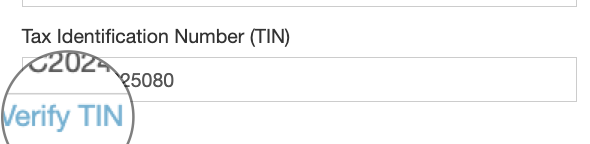
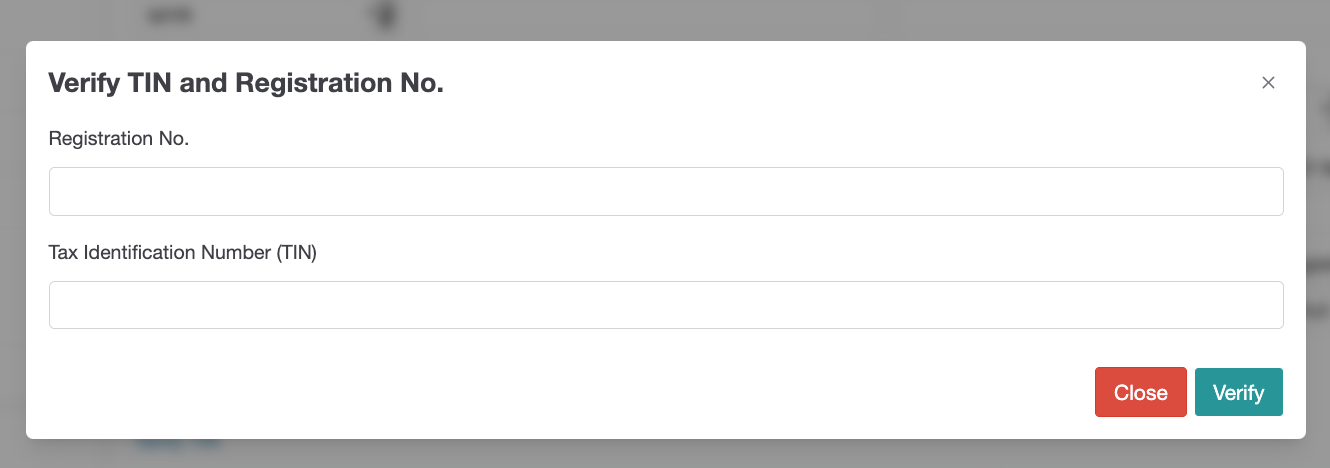
Insert the business partner’s Registration No. and TIN for verification
5. Business Partner IC (insert without dash ‘-’)
Remarks: If the business partner is a Malaysian individual taxpayer, this field is a requirement alongside TIN.
6. MSIC code (particularly important for self-bill purposes)**
Remarks: Users need to add the MSIC codes accordingly and please refer here to view a list of MSIC codes from LHDN.
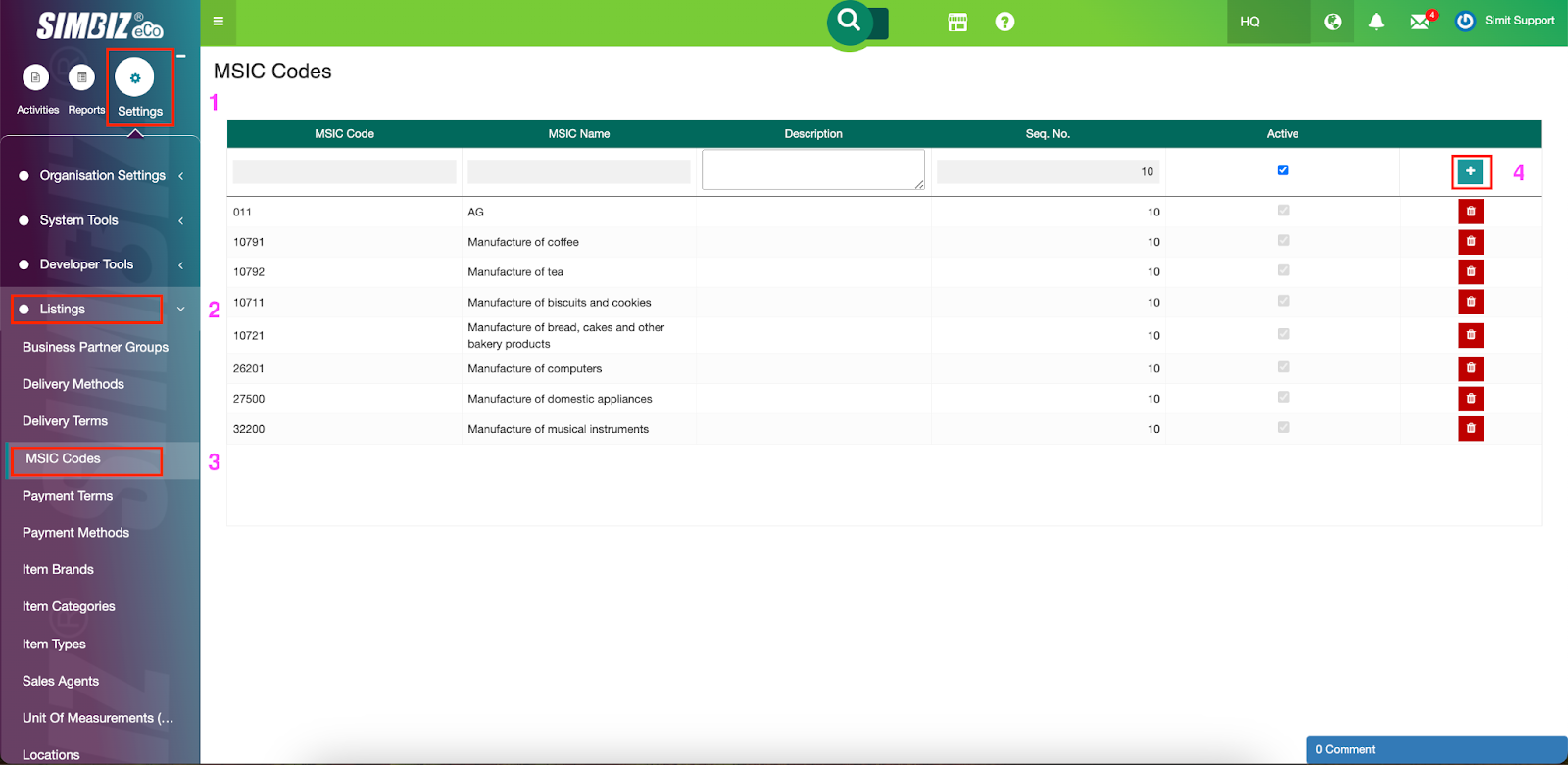
**How to add on MSIC
Go to Settings section > Listings > MSIC codes.
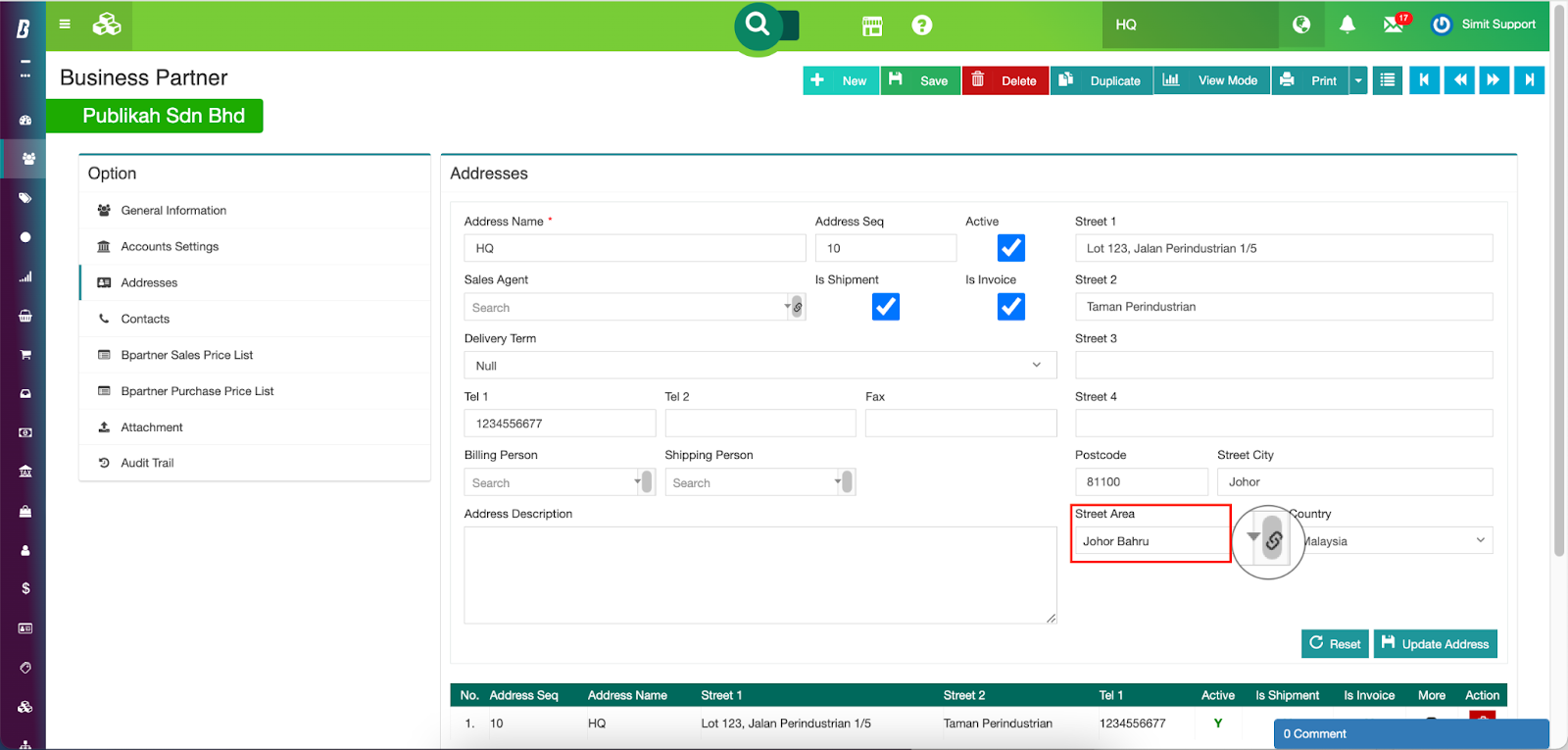
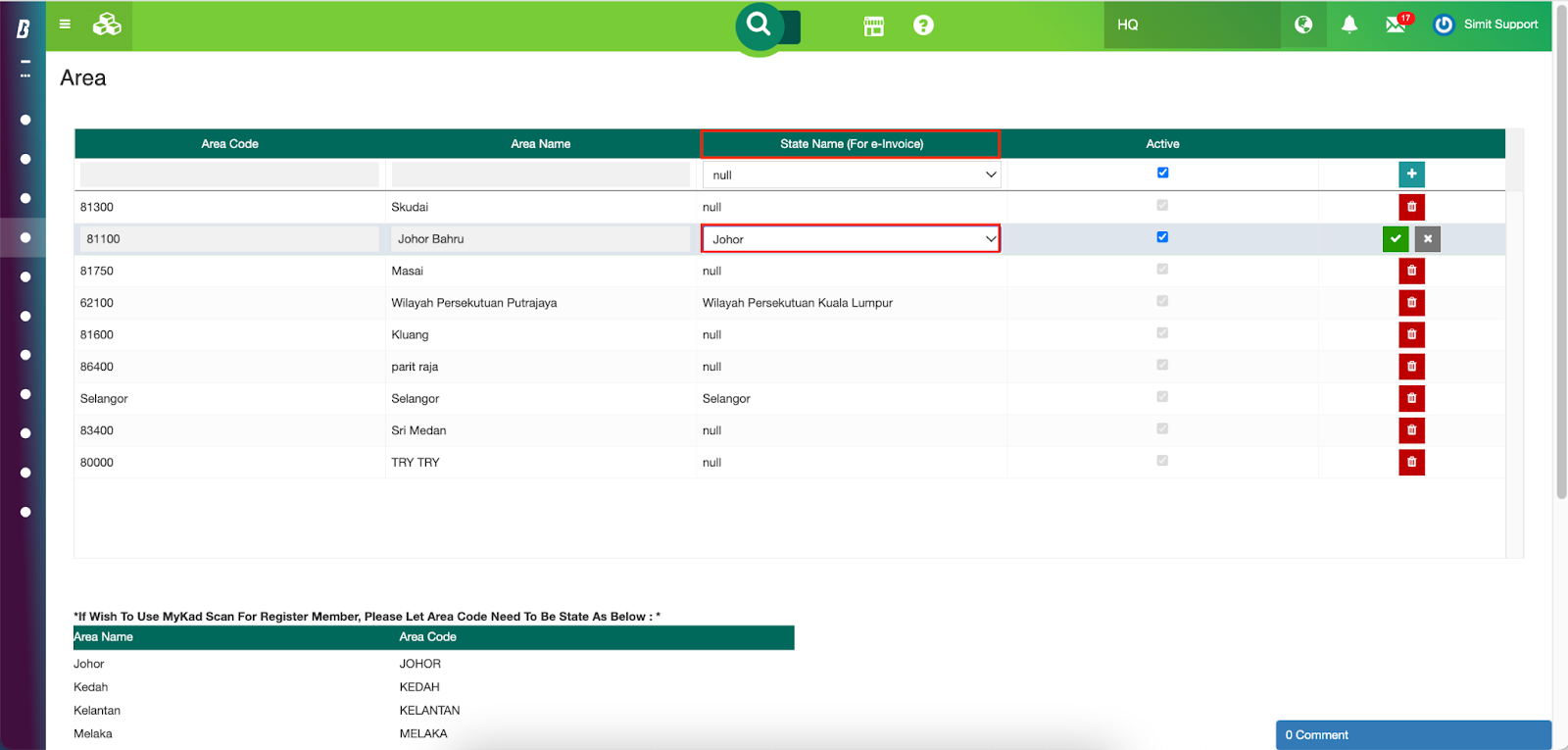
Step 5 : Next, click the Address section. Update the Street Area’s State Name by clicking the View icon to access the Area page.
Step 6 : You will be directed to the Area page. Update the State Name(For e-invoice) for all relevant areas.
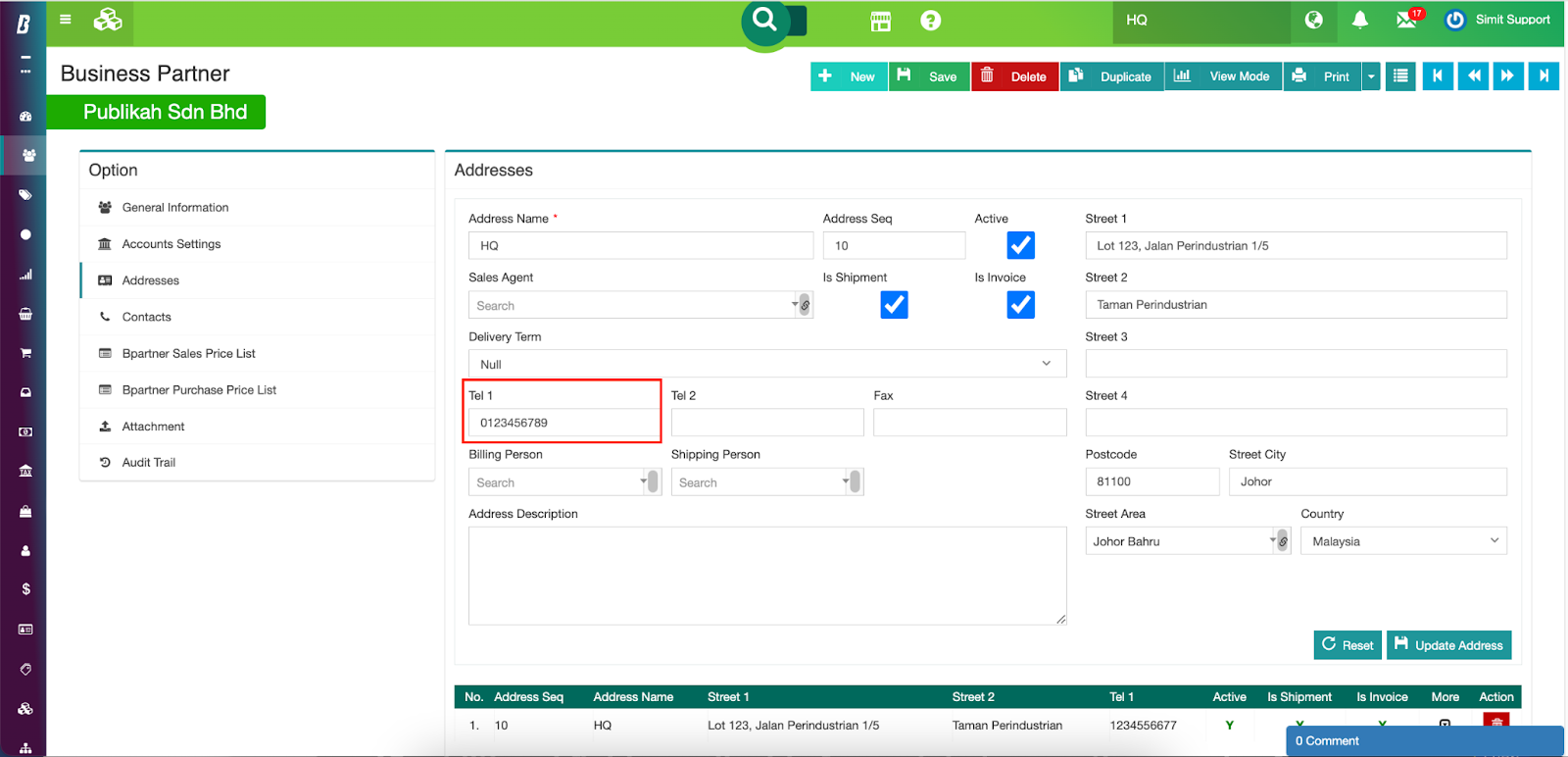
Step 7 : A contact number must be inserted for a successful e-invoice submission. Update ‘Tel 1’ and click the Update Address button to save the changes.
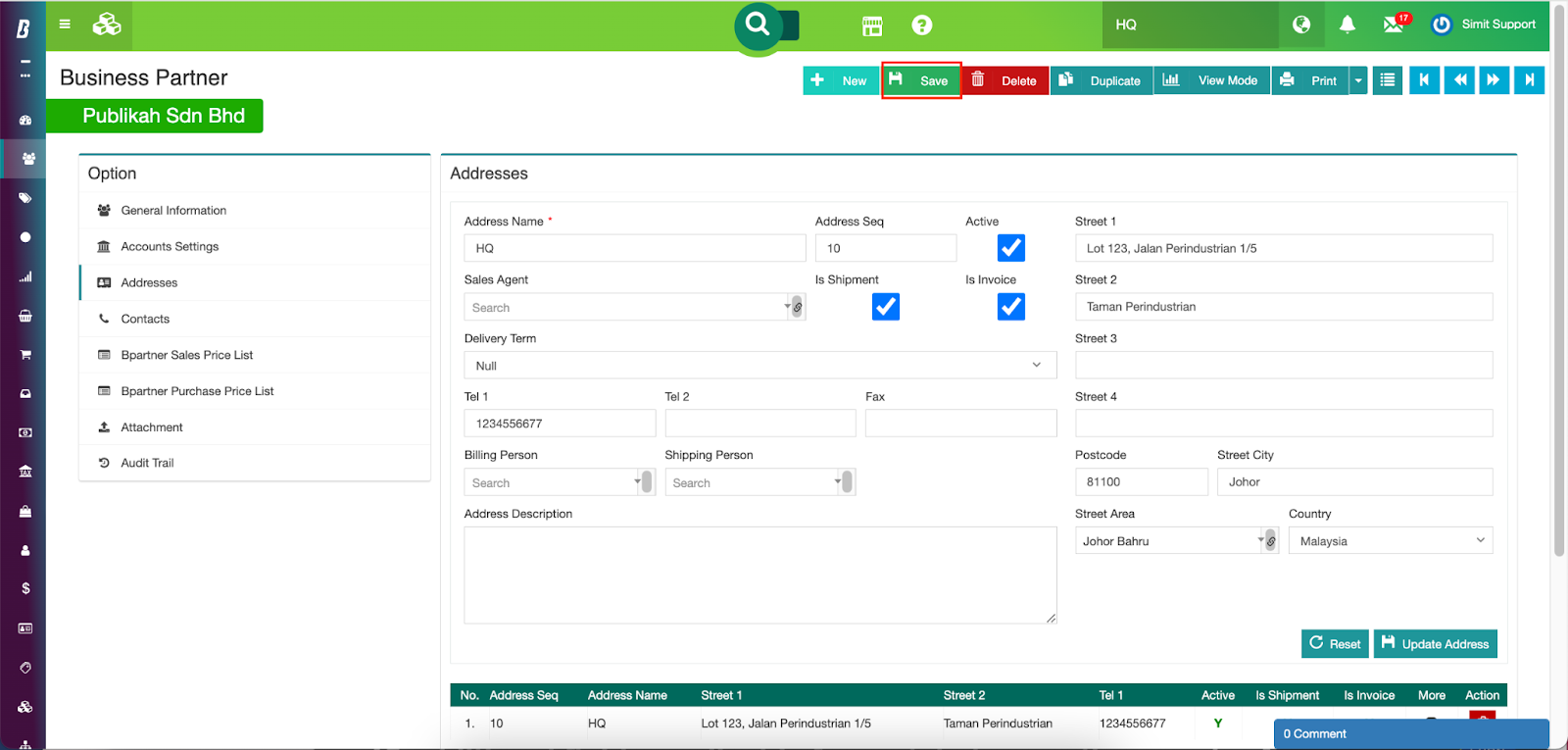
Step 8 : Click the Save button on the top right to save the updates to ensure all business partner information is correctly configured for e-invoice submission.
*** If your Business Partner screen has been customised previously, please contact our support team by submit ticket for further assistance.
Was this article helpful?
That’s Great!
Thank you for your feedback
Sorry! We couldn't be helpful
Thank you for your feedback
Feedback sent
We appreciate your effort and will try to fix the article