Also, as an alternative to updating business partners’ essential information such as the tax identification number (TIN) for e-invoice submission, users may use the Import functionality by following the step-by-step below:
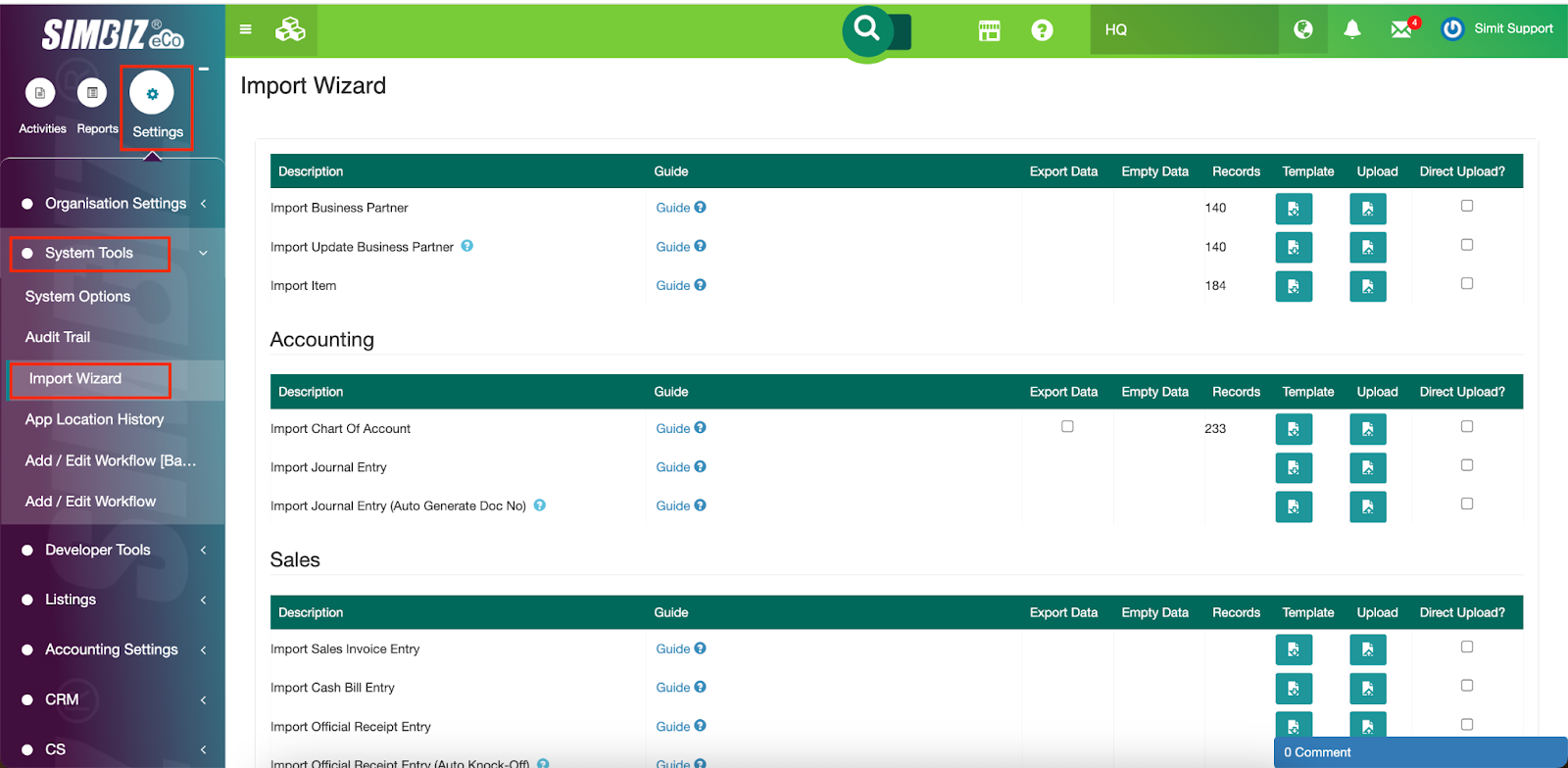
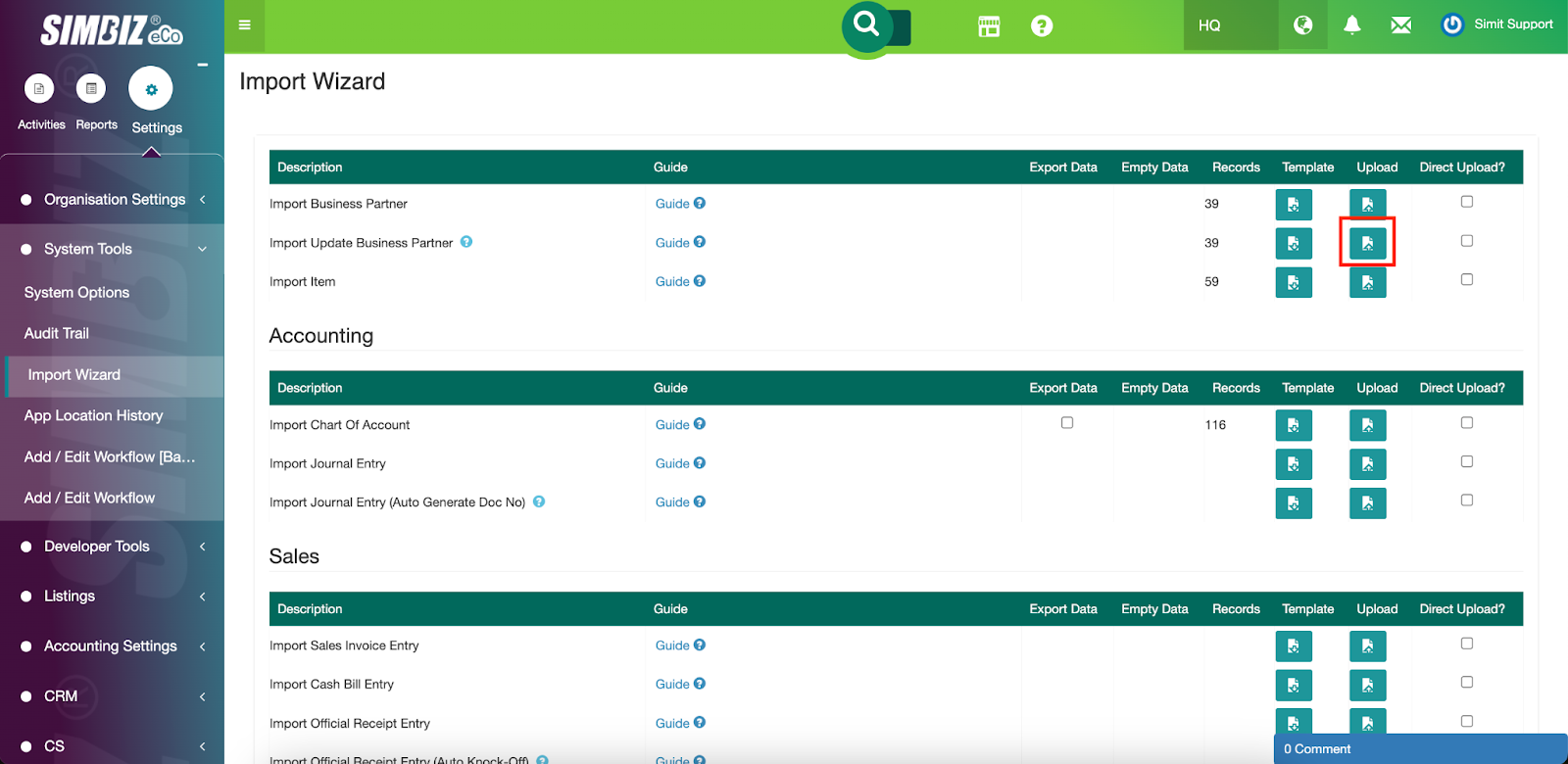
Step 1 : Go to Settings > System Tools > Import Wizard.
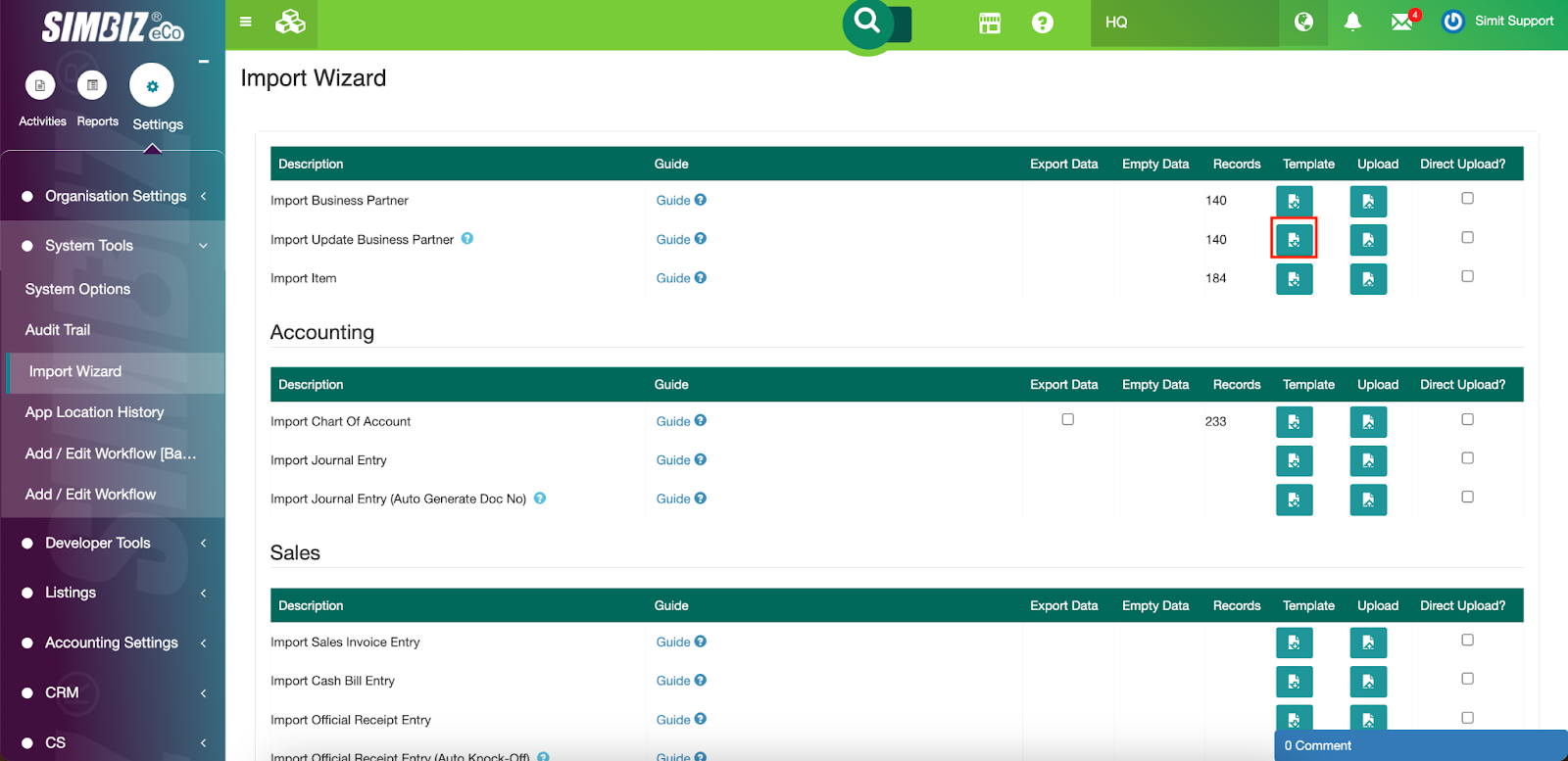
Step 2 : Click the Template icon below to download the import template from SimBiz.
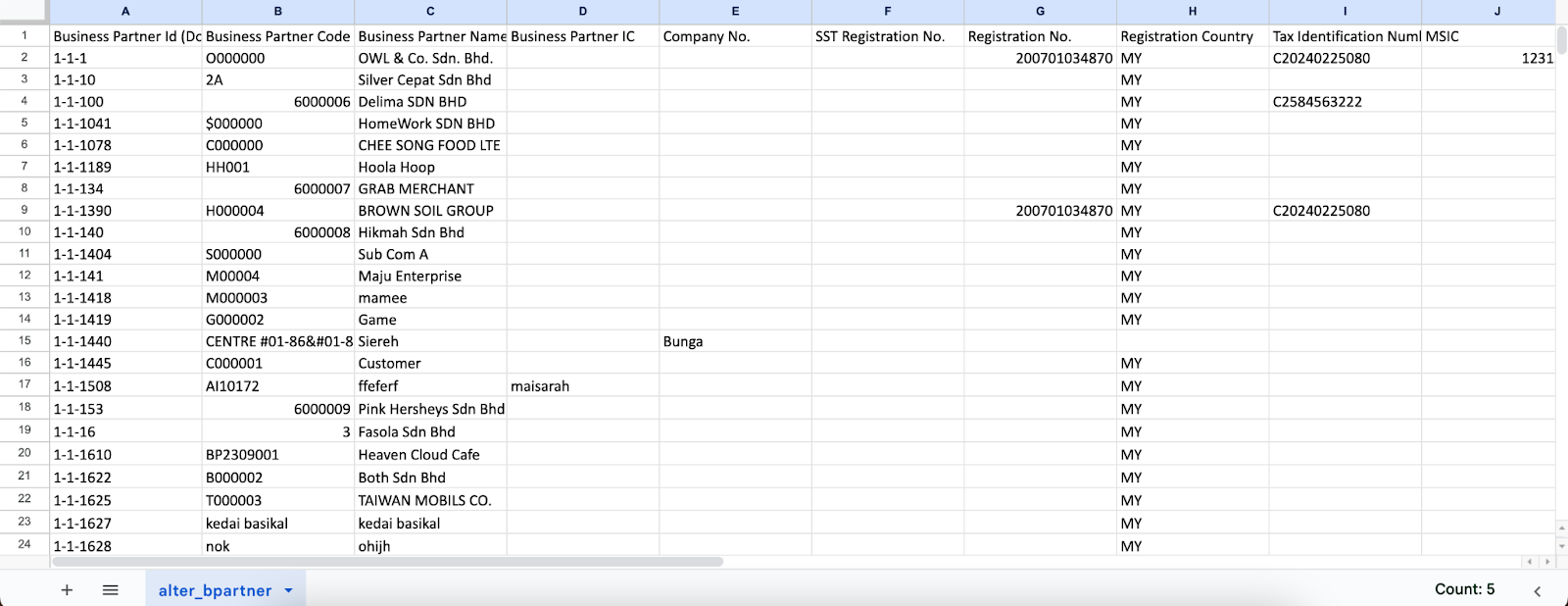
The downloaded template looks like the image below:
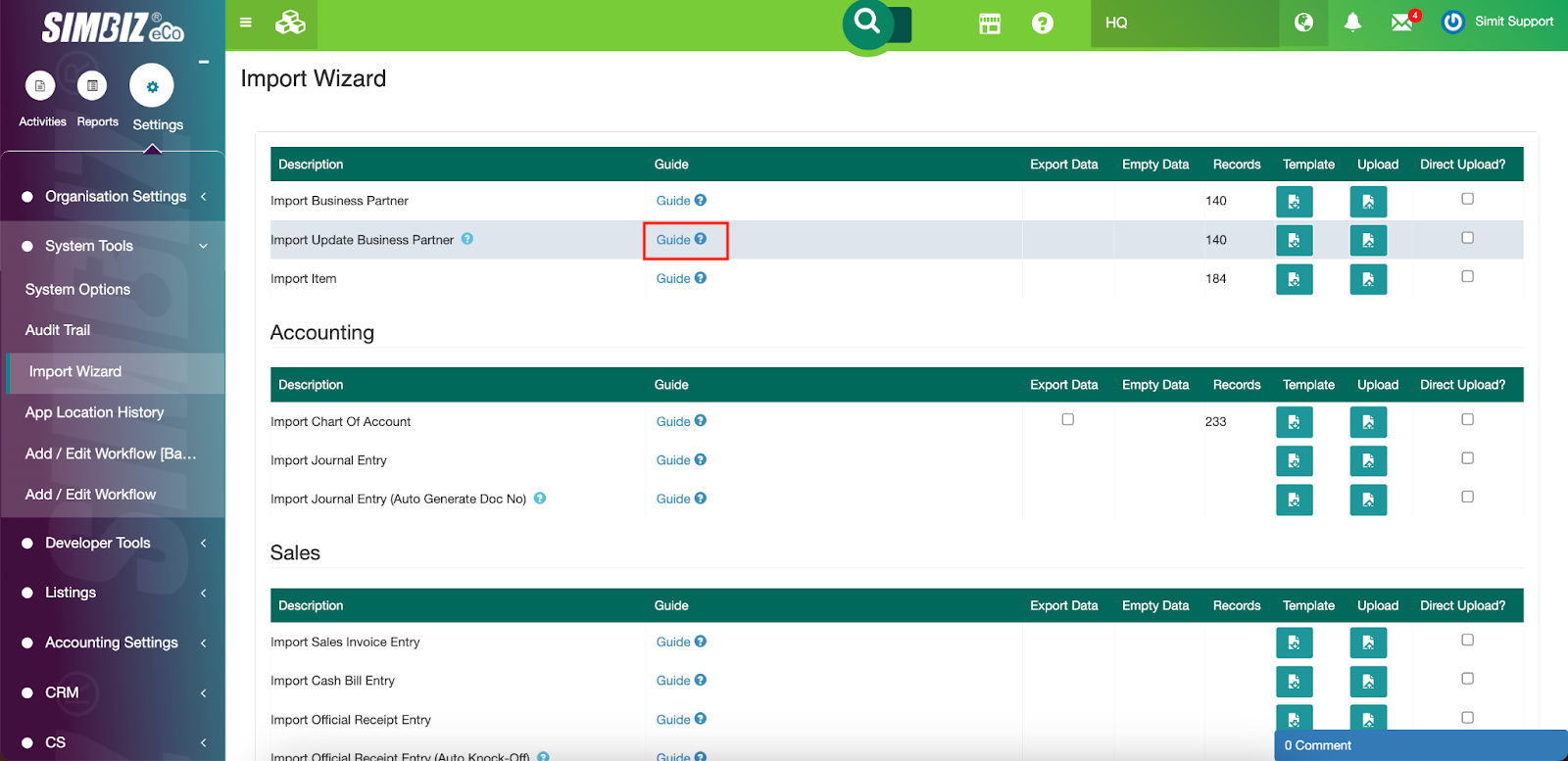
Step 3 : Users may refer to the guidelines by clicking the ‘Guide (?)’ hyperlink on the Import Wizard to learn how to insert the existing business partners’ e-invoice essentials.
Step 4 : Referring to the guidelines below, users may update the existing business partners’ Name, IC, Company No., Registration No., Registration Country, Tax Identification Number (TIN) and MSIC.
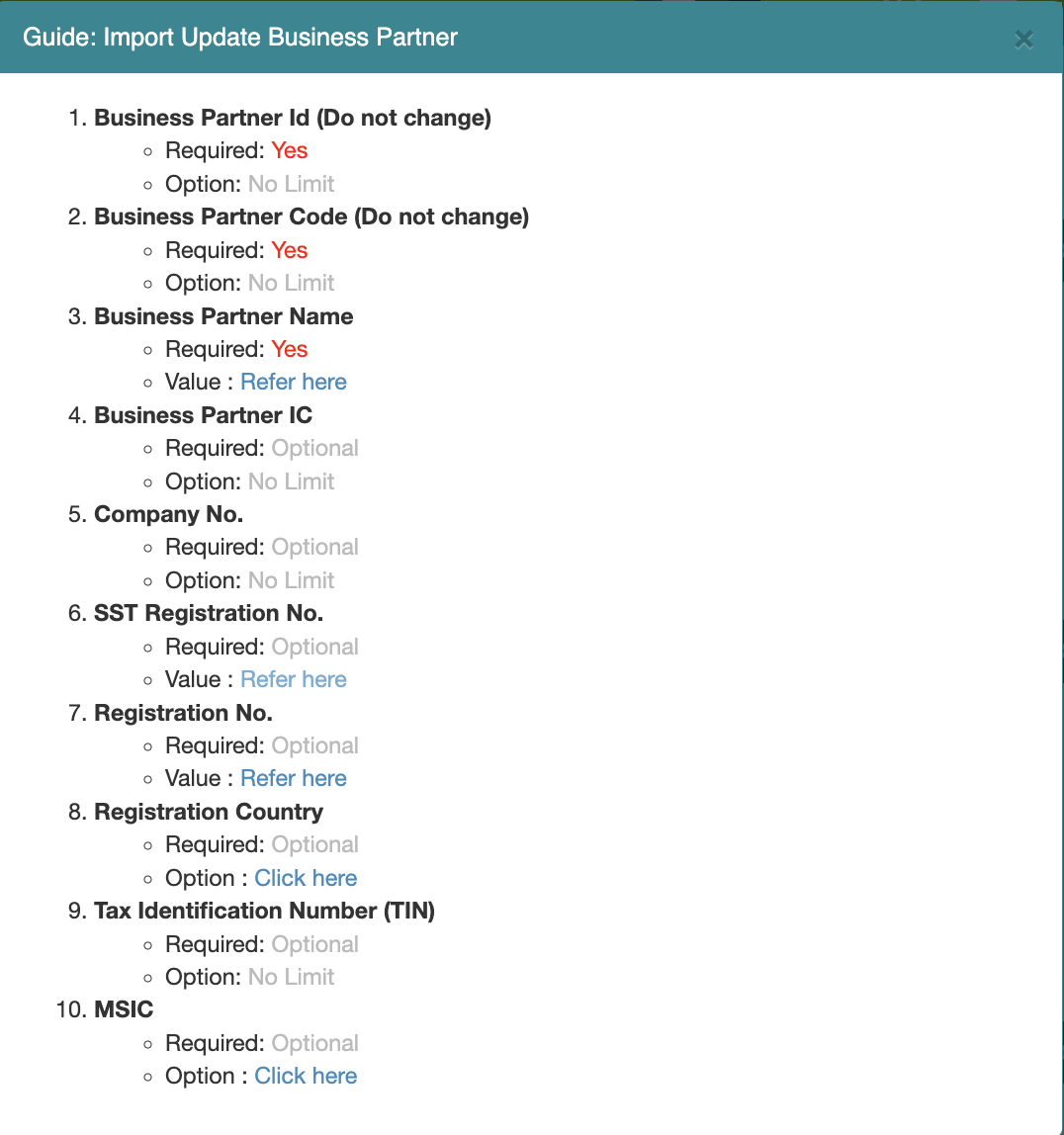
Remarks: Do not change the Business partner’s ID and Business Partner Code as this action will cause an interruption in the uploading process.
Step 5 : To update the Business Partner’s details accordingly, users may insert the:
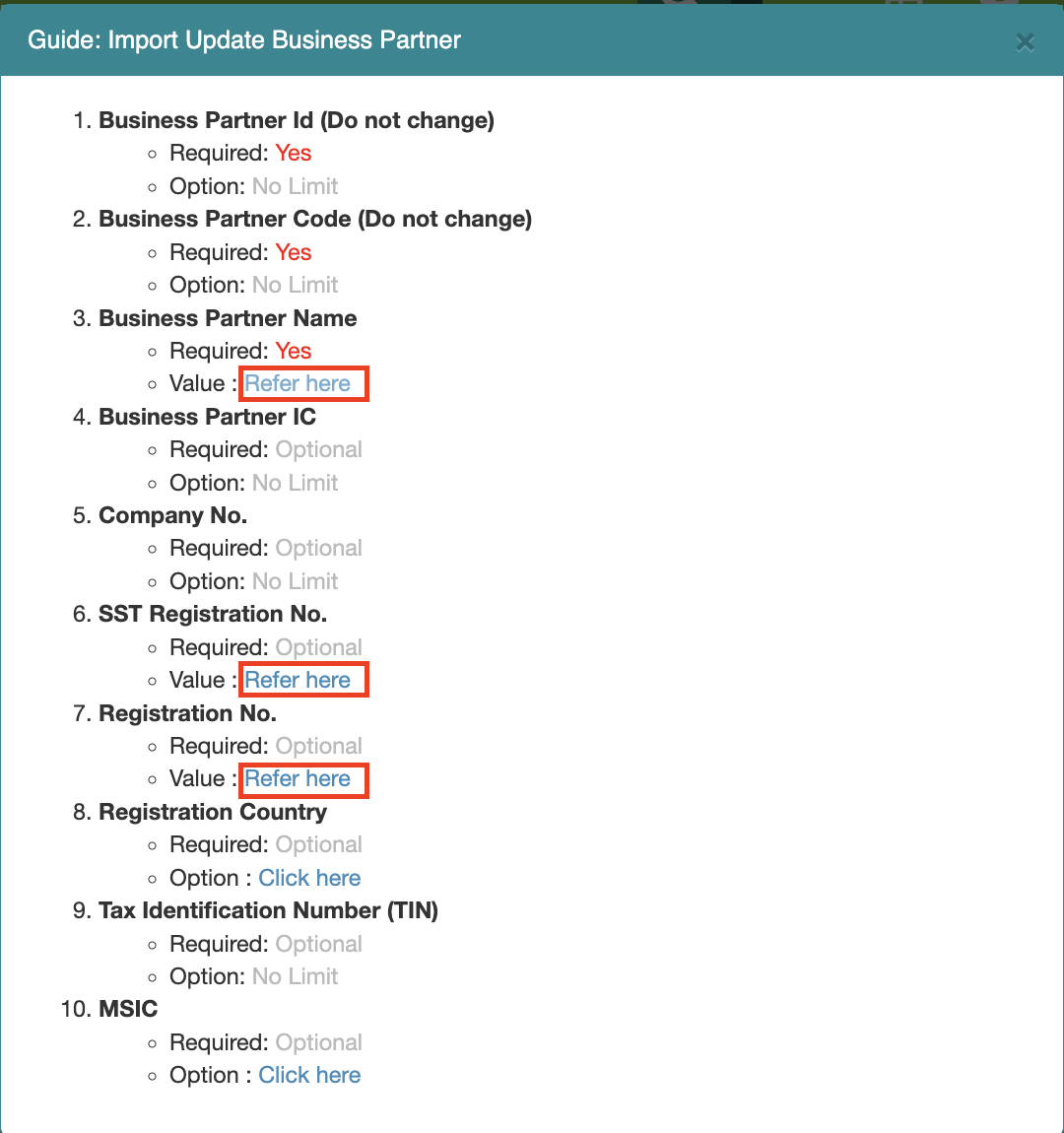
Business Partner Name, SST Registration No. (if applicable) and Registration No.
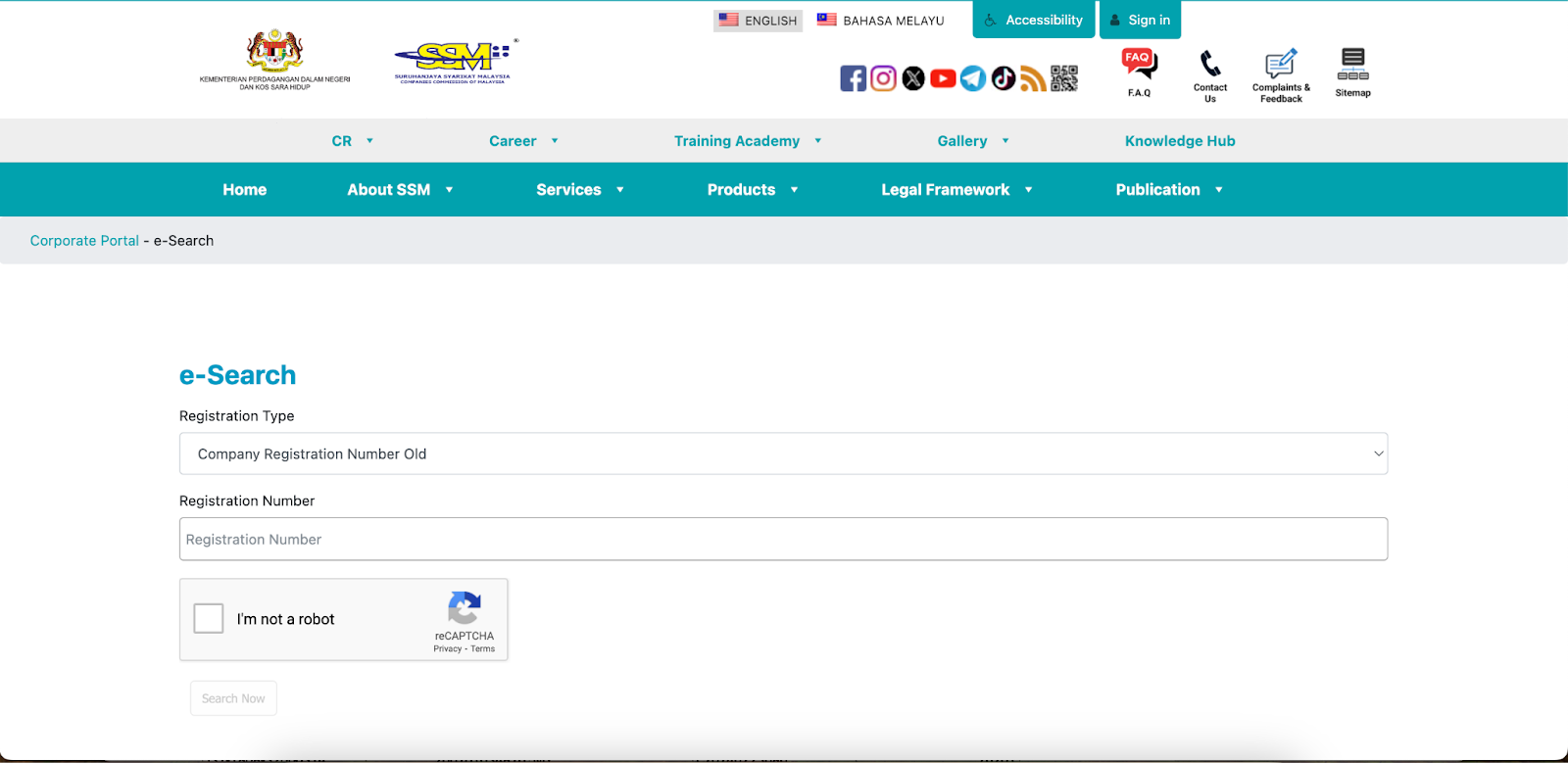
To ensure a smooth e-invoice submission process, users may cross-check the 3 details above on the SSM official website by clicking the ‘Refer Here’.
Users will be directed to the SSM official website to do the cross-checking as shown in the image below:
Business Partner IC (without dash)
Company No.
Registration Country
Tax Identification Number (TIN)
MSIC
Remarks: If there is information that users wish to remain unedited such as the Business Partner Name, keep the data as it is. Also, if business partners are not involved in the amendment, remove the name from the list.

Step 6 : Once the data is ready, upload it to the Import Wizard page by clicking the Upload button.
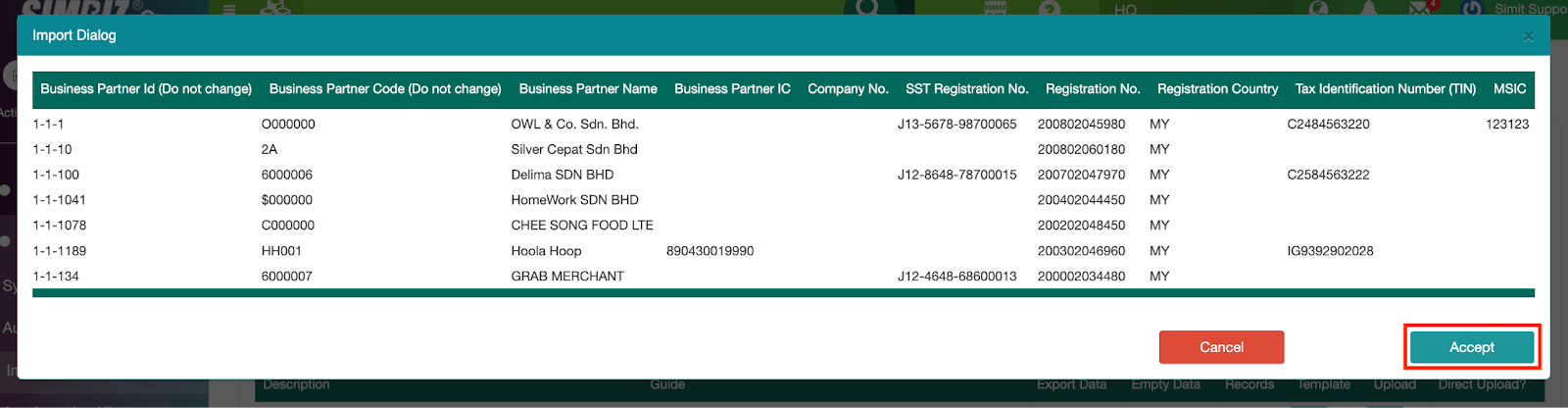
Step 7 : Upon uploading the template, the system will preview the uploaded sheet to confirm the action in the image below. Click the Accept button to proceed with the upload.
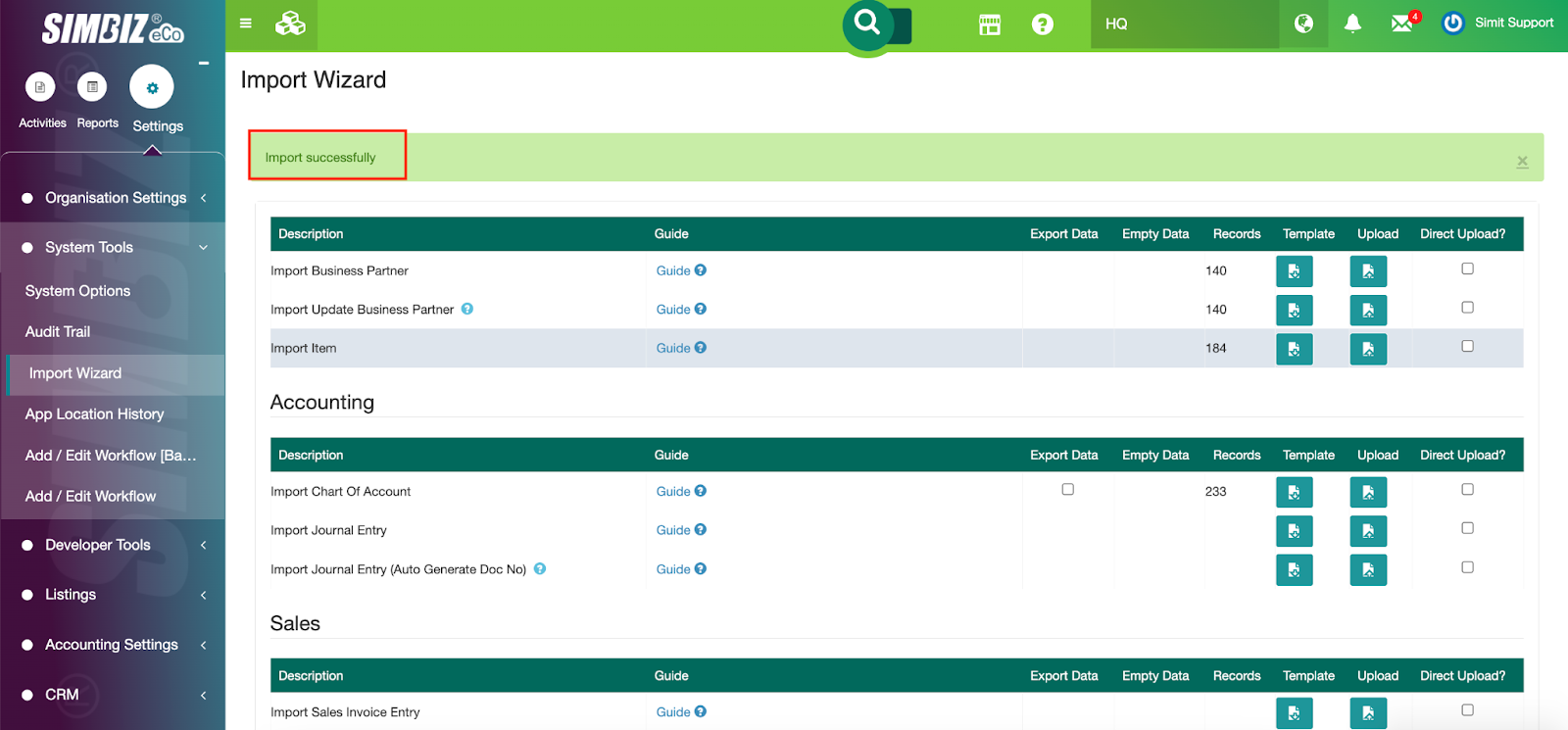
Upon successfully uploading the template, the system will display the message as shown below:
Was this article helpful?
That’s Great!
Thank you for your feedback
Sorry! We couldn't be helpful
Thank you for your feedback
Feedback sent
We appreciate your effort and will try to fix the article